Plans change. A guest rings to ask for a later time, an extra cover, or a different table. Almost everything on a booking can be updated in place — you do not need to cancel and start over.
Opening the booking
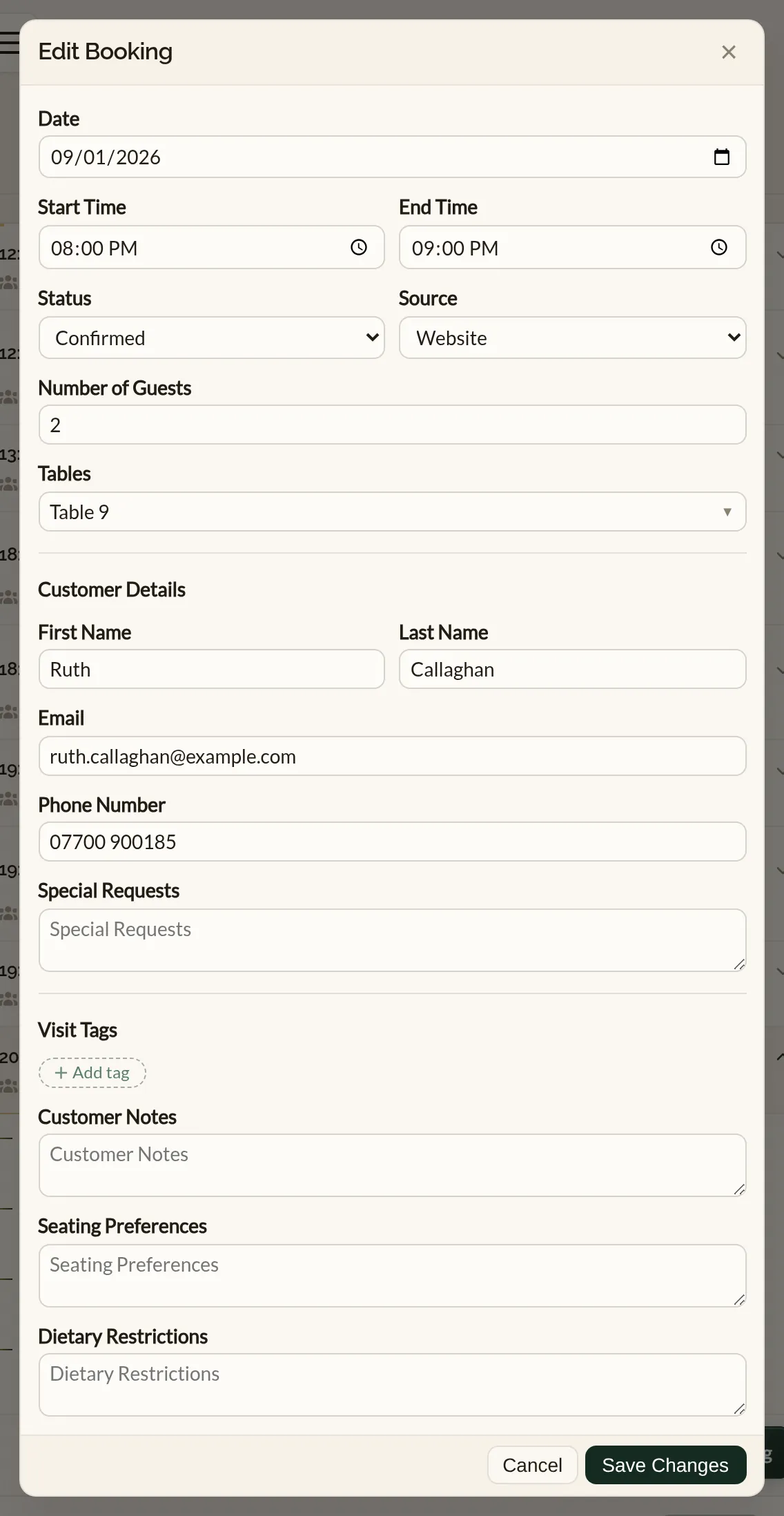
You can open any booking from the same form you used to create it. Three ways to get there:
- The Bookings list — click the booking's row to expand its details, then click Edit Booking.
- The Calendar — click the booking on the day or timeline view.
- The Live Floor Plan — click the booking attached to its table.

The same booking form opens, this time in edit mode and pre-filled with the booking's current details.
Tap the booking on Today, in the Diary, in the Inbox or on a guest's profile, then tap Edit details at the bottom of the booking sheet.
The full booking form opens, filled in with the booking's current details. The heading shows the guest's name, with the date, times and party size beneath it — these update as you edit, so you can check the change before you save. The form is split into When, The visit, Status, Guest and Good to know.
What you can change
- Date and time — including the end time, if the booking needs to run longer or shorter than your default sitting.
- Number of guests — the party size.
- Table assignment — switch the booking to a different table, or attach it to more than one for a larger party.
- Team member — for an appointment booking, hand it to a different member of the team, or back to nobody.
- Status — for example, moving a phone booking from Pending to Confirmed once you have called back.
- Customer details — name, email, phone.
- Special requests, notes, dietary, seating preferences — anything the kitchen or the floor needs to know.
For a service booking — a class or an appointment — the time is picked from the service's available times for that date, the same list you book from, rather than typed in. There is no end time to set: the booking's length comes from the option. The booking's own time is always on the list, so you can save other changes without moving it.
Make your changes and click Save Changes. The booking updates in the diary straight away.
For a service booking — a class or an appointment — the Start time and End time pickers are replaced by the option's Length, which is fixed, and a Time list of the service's available times for the chosen date, the same list you book from. The booking's own time is always on the list, so you can save other changes without moving it. For an appointment, Team member chips let you hand the booking to someone else or back to Nobody assigned.
Make your changes and tap Save changes. The booking updates in the diary straight away. Anything under Guest and Good to know — name, phone, email, dietary needs, seating preference and notes — is saved to the guest's profile, so it is there on their next visit too.
Common changes
Moving the time
Update Start Time (and End Time if the booking length is changing) and click Save Changes. The form will accept whatever time you give it — it does not check the new time against your opening hours or meal periods, so use your judgement. The one exception: an appointment with an assigned team member cannot be moved to a time when that member is already committed — the save is refused and the booking stays as it was. See Setting your opening hours and Services and meal periods for the rules running in the background.
For a service booking, pick a new time from the Time list instead. Each time shows how many places are left; a time with none can still be chosen after a quick confirmation. To move the booking to another day, change the Date first and the list refreshes.
For a service booking, tap a new time in the Time list instead. Each time shows how many places are left. To move the booking to another day, change the Date first and the list refreshes; if that day has no times, Next available jumps to the next day that does.
Moving the booking to another venue
If your business is part of a group on Make a Rezzy and a guest has booked the wrong restaurant, you can move the booking rather than cancel and re-key it. Open the booking, click Move to another venue, pick the venue and check the date and time, then click Move.
The booking keeps its reference, party size, requests and any deposit paid. It takes on the other venue's sitting time and cancellation terms. When they are moved, the guest receives a confirmation from the new venue. If no table is free at that time, the move is refused and you can choose another time.
Only table bookings that have not yet been seated can be moved, and only by someone who is also on the team at the other venue, so a guest who turns up a few minutes late at the wrong restaurant can still be moved. Bookings paid for together, event bookings and service bookings stay where they are. Tags you added to the booking and the guest's marketing opt-in stay with the original venue.
Moving a booking to another venue in your group is done on the web — open the booking there and choose Move to another venue.
Adding or removing guests
Update Number of Guests. If the new party size will not fit on the current table, attach an extra table from the Tables picker, or move the booking to a bigger table. For a service booking, the form shows the smallest and largest party the service allows; a party outside that is refused when you save.
Use − and + beside Guests, or tap the number to type it. Each table under Tables shows how many it seats; if the new party will not fit, tap an extra table or move them to a bigger one. For a service booking, the form shows the smallest and largest party the service allows beneath the field; a party outside that is refused when you save, and the form tells you why.
Moving to a different table
From the booking form, change the table selection — you can pick more than one if the booking needs to span tables. On the Calendar you can also drag a booking from one table to another for a quicker shuffle — see Moving a booking to a different table.
Under Tables, tap each table the party will use — the ones in green are on the booking. Tap a green table to take it off.
Reassigning an appointment to a different team member
Open the booking and pick a different name from the Team member list — it only offers members who provide that service. Choose Nobody assigned to put the appointment back in the Unassigned row of the Calendar's Services view for someone to pick up later. A member cannot be double-booked: if they already have a commitment at that time, the save is refused and the booking stays as it was.
Confirming a pending booking
If you saved a booking as Pending so you could call the guest back, open the booking and set Status to Confirmed.
Fixing a typo in the guest's details
Open the booking and update the name, email, or phone under Customer Details (Guest on the phone). If the booking has a linked guest profile, the change is reflected there too — see Guest profiles.
When to cancel instead
If the guest is not coming at all, set the status to Cancelled rather than blanking the booking. Cancelling keeps an audit trail, frees the table, and emails the guest a cancellation confirmation. See Cancellations and no-shows for the full picture, including deposit refunds. If the guest booked the wrong restaurant in your group, move the booking instead — see above.
Where to go next
- Cancellations and no-shows — how to handle the awkward calls and what happens to deposits.
- Moving a booking to a different table — drag-and-drop shuffles from the Calendar.
- Guest profiles — where customer details live across visits.
See also: The restaurant booking diary