When a table is not quite right — the wrong size for the party, too near the kitchen, or simply already booked by somebody else — you can move a booking onto a new table without opening the form. Drag it on the Calendar and let go.
Moving a booking to a different table
- Open the Calendar and find the booking you want to move.
- Click the booking once to select it. The block will be highlighted to confirm it is selected. Do not double-click, or you will open the booking form instead of moving it.
- Drag the booking up or down onto the row for the new table.
- Let go. The booking snaps onto the new table and saves automatically.
- Open Diary, switch to Timeline, and find the booking you want to move.
- Press and hold the booking for about half a second to enter edit mode. The block will become highlighted to confirm it is selected, once this happens, you can let go of the screen and start dragging.
- Drag up or down onto the row for the new table.
- Release. The booking snaps onto the new table and saves automatically.
Giving a booking its first table
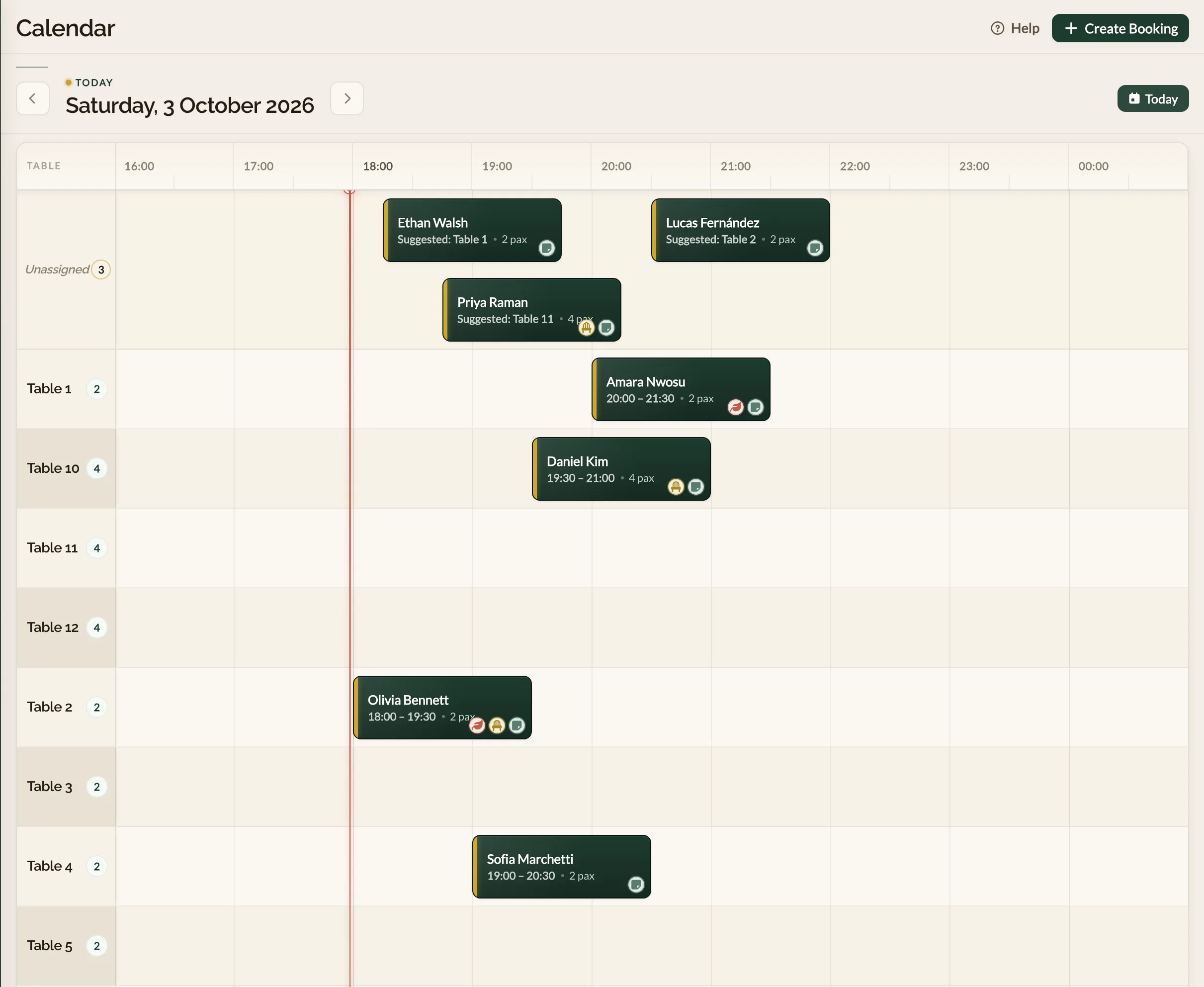
Bookings without a table wait in the Unassigned row at the top of the Calendar. Each one shows a suggested table — the one Make a Rezzy is holding for it so the space is not offered to anyone else.
- Click the booking once to select it.
- Drag it down onto the row for the table you want, and let go. You do not have to use the suggestion.
When you place a booking, the suggestions for the others may change to make room. If a booking shows No table fits, every suitable table is taken at that time — you can still drag it onto a table of your choice.
In the mobile app, open Diary and switch to Timeline. Bookings without a table wait in the Unassigned row at the top.
- Tap the booking, then tap Assign table. The suggested table is already picked, so you can confirm it or choose a different one.
- Or press and hold the booking for about half a second, then drag it down onto the row for the table you want.
What else you can drag
Once a booking is selected (or in edit mode on mobile), the same gesture handles two other adjustments:
- Drag left or right to reschedule the time while keeping the booking on the same table.
- Drag the right-hand edge to extend or shorten the booking. Useful for long sittings, private hires, or when a guest rings to say they are running late and you want to adjust their booking accordingly.
If a drop is rejected
The Calendar saves the change as soon as you let go. If the save fails — for example, because your connection dropped — the booking snaps back to where it started and a message appears at the bottom of the screen:
- "Failed to update table assignment. Changes have been reverted."
- "Failed to update booking time. Changes have been reverted."
- "Failed to update booking duration. Changes have been reverted."
The Timeline saves the change as soon as you let go. If the save fails — for example, because your connection dropped — the booking springs back to where it started and a Booking not moved message tells you the change was not saved.
Nothing is lost. The booking is exactly where it was before you tried the move. Try again, or open the booking itself to make the change in the form.
Tables that span more than one
For larger parties on tables that have been joined together, drag any one of the booking's blocks. The booking will follow as a whole and take its joined tables with it. To attach a different combination of tables, open the booking and edit the table selection in the form — see Modifying a booking.
Where to go next
- Calendar overview — the layout the drag gesture is happening on.
- Modifying a booking — the long way round, for any change that needs the form.
- Using the Live Floor Plan — what the Floor Plan is for, given it does not accept drags.
See also: The restaurant booking diary