Services are bookable sessions that run to their own timetable — a yoga class, a massage, a spa entry, a haircut. Once a service is created and published, guests can book it from your services page. This article walks through the service form from top to bottom.
Where services live
Sign in to manage.makearezzy.com, pick your business, and open Services from the left-hand menu. The list shows every service you have set up, grouped by category, each with its type, price, and whether it is published. Click any service to see its summary; click Add Service to start a new one.
In the app, open More and tap Services. The list shows every service you have set up, grouped by category, each with its type, how long it runs, its "from" price and, for a class, how many sessions run today. A service that is not yet published carries an Unpublished chip. Tap a service to see its summary, its options and its bookings for the day.
Services are created and edited on the web. On a service's page in the app, Edit on web opens the same service on the manager site.
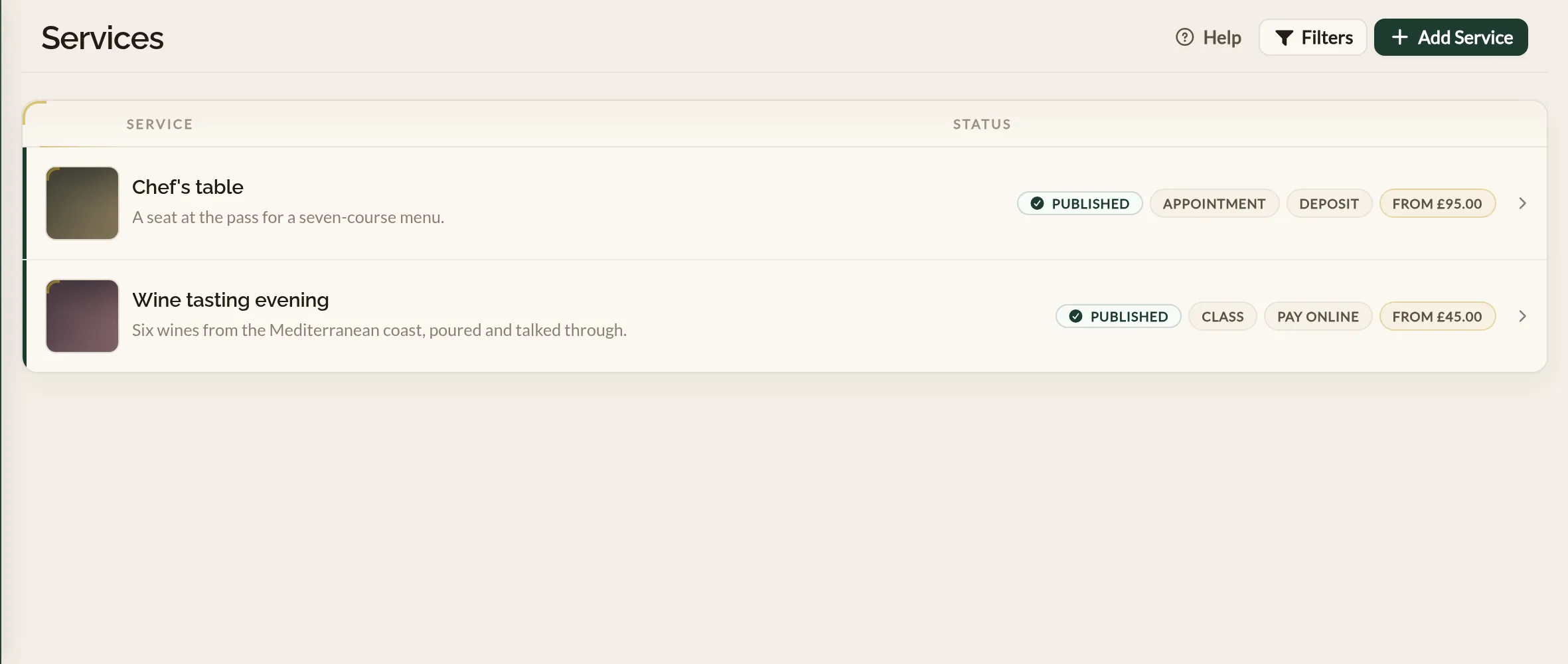
The service form
The form is split into four sections. You fill them all in on the same page, in any order, and save at the bottom.
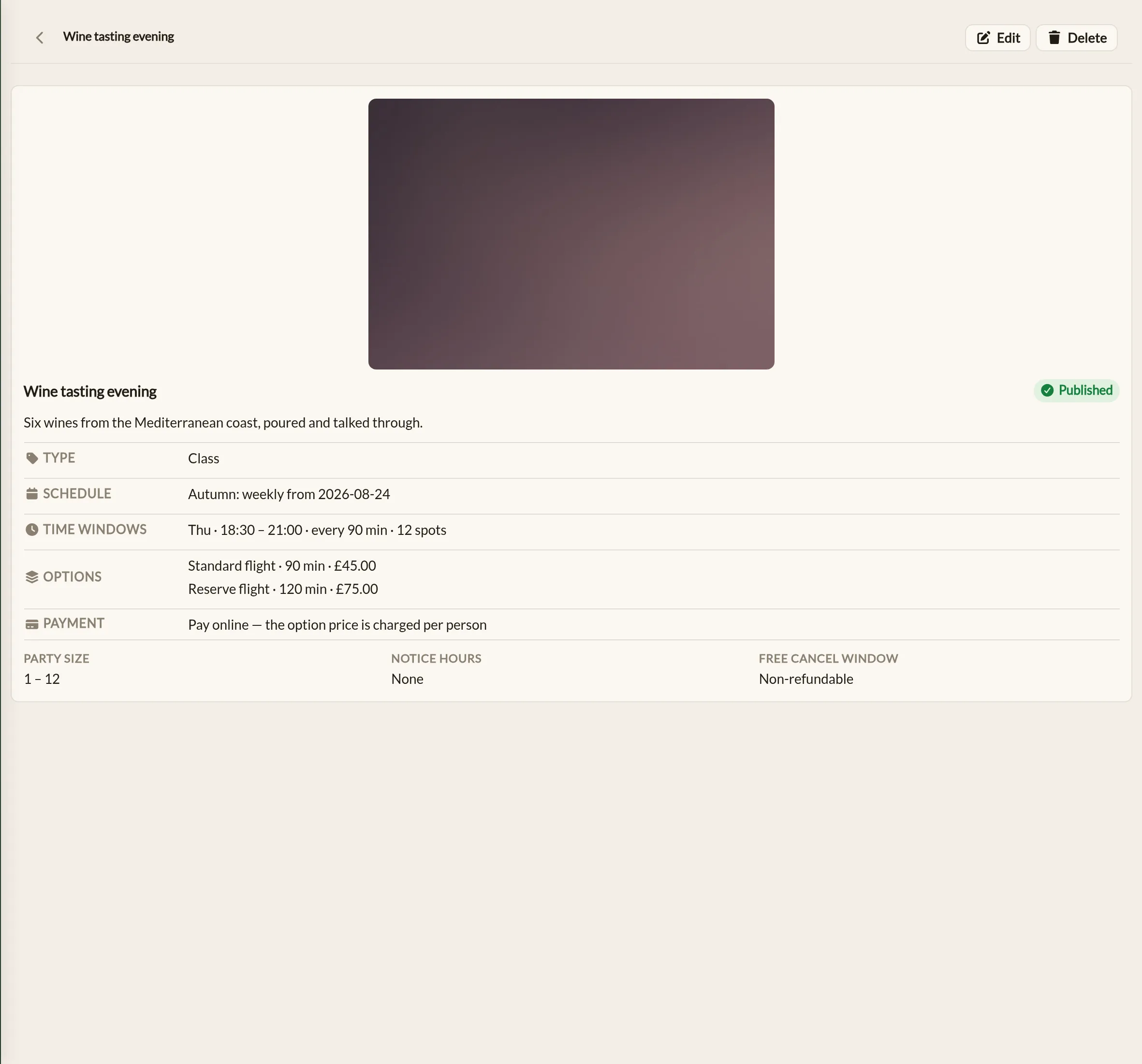
1. Service Details
- Service name — what the service is called. Must be unique within your business.
- Short description — the line guests see on your services page, and the summary search engines show.
- Full description — optional, and as long as you like. It replaces the short description on the service's own booking page, so use it to explain what the service involves, what is included and anything guests should know before they arrive. Leave it blank and the short description is shown there instead.
- Publish this service — leave this unticked while you are still drafting. The service is not shown to guests until it is published.
- Category — an optional group heading for your services page, such as "Massages" or "Classes". Pick one from the list, or click New category to create one on the spot. See Categories below.
- Cover image — an optional photo shown alongside the service.
- Minimum guests per booking and Maximum guests per booking — how many guests one team member takes in a single booking. A massage is 1 to 1; couples yoga is 2 to 2; a private tour might be 1 to 8. Leave the maximum blank for no limit. A party larger than the maximum is asked to book separately — one booking per team member — rather than being squeezed into one.
- Notice hours — minimum lead time before a guest can book. Leave blank to allow last-minute bookings. Your team can still book a guest in inside the notice period.
2. Pricing & Duration
Every service has at least one bookable option — a duration and a price per person. For a simple service, just fill in Duration (minutes) and Price per person and you are done.
If the service comes in more than one version — a 30, 60, or 90-minute massage, say, or different prices for different treatment lengths — click Add another option. Each option gets its own name, duration, and price, and guests pick one when they book. Your services page shows the cheapest option as the "from" price.
3. Payment
Pick how guests pay:
- Free — no payment is taken and no price is shown.
- Pay on arrival — prices are shown but guests pay at the venue.
- Pay online — the option price is charged per person when booking. Every option needs a price.
- Deposit — a fixed Deposit per person is charged when booking, with the balance settled at the venue.
For Pay online and Deposit you can also set Free cancellation (hours before) — how long before the booking a guest can cancel and be refunded automatically. Leave it blank to make the payment non-refundable.
4. Schedule
Pick the service type (class, appointment, or open access), how often it runs, and its time windows and capacity. This is the biggest part of the form and has its own article — Service schedules and capacity.
Under the Availability setting, tick the people who deliver this service under Team members who deliver this. Only assigned team members can be given the service's bookings or run its sessions, and only they count towards its availability when it needs a free team member. The same mapping can be set from the other side, on the Team page. If nobody is assigned, the form says so: an appointment or open-access service that needs a free team member will show no availability online, and an appointment service following the schedule will take bookings but leave them unassigned for you to allocate.
Appointment services also carry Customers choose their team member. Switch it on and guests booking online pick who they would like — or "No preference" — before choosing a time, and the calendar narrows to that person's free times. Only team members assigned to the service and marked bookable online are offered. With the setting off (the default) no picker is shown; either way, bookings that arrive without a chosen person are assigned to an available team member automatically, or left unassigned when nobody is free.
Categories
Categories are the group headings on your services page — the way a spa menu splits into "Massages", "Facials", and "Body treatments". They are entirely yours to define. Services without a category are grouped under "Uncategorised" at the end of the list, so if you use categories, it is worth giving every service one.
What the guest sees
Published services appear on your services page, grouped by category with their "from" price and duration. Guests also reach it from the Book a Service button on your Make a Rezzy listing. Booking takes a few steps:
- They pick a service from the menu, and an option if it has more than one.
- If the service lets customers choose their team member, they pick a person — or "No preference" — first.
- They pick a date from the calendar (only days with availability can be selected), and then selects an available booking time.
- They fill in their name and contact details. If the service takes payment, they are passed to a payment form before the booking is confirmed — the same payment flow as any other Make a Rezzy booking.
The booking lands in your diary like any other, marked with the service and option it is for.
The day's bookings and class rosters
Service bookings appear in the diary and on the Calendar's services day alongside everything else — see Calendar overview for the day by team member and class.
To book a guest onto the service yourself, click Book a guest in at the top of the service's page. Taking a booking by phone walks through the form.
A service's page in the app opens on today, with arrows to step to another day. For an appointment or open-access service it lists the day's bookings in arrival order. For a class it lists the day's sessions, each with who runs it and how many places are taken — "3 of 12 booked", or Full in coral once the spots are gone. Tap a session to open its roster: the guests booked onto it, with their party size, dietary needs and notes.
Tap a guest to open their booking. Marking them Seated is how you check a guest in to a class or an appointment — there is no separate check-in step, and the count on the session updates as you go. See How bookings work for the rest of the booking sheet.
To book a guest onto the service yourself, tap Book a guest in under the day, or open a class session's roster and tap Add guest to book them straight onto that session — the time is already chosen, and a full session can still be booked after a quick confirmation. Taking a booking by phone walks through the rest of the form.
Editing and removing a service
Open the service from the Services list and use Edit to change anything on it. Changes take effect straight away, and the available times are reworked automatically after a schedule change.
To remove a service entirely, use Delete from its page. Deleting does not cancel the service's existing bookings — handle those first.
Services cannot be edited or deleted in the app. Open the service and tap Edit on web to change it on the manager site; changes take effect straight away and the app picks them up the next time you open the service.
Where to go next
- Service schedules and capacity — the Schedule section in detail.
- Tables, services, or both — tailoring the manager site to what your business offers.
- How bookings work — once a service is published, its bookings flow through the same statuses as every other booking.