Reviews live on your public restaurant listing — the same page guests see when they are considering a booking. This article explains how to find them, what each one shows, and how to reply to feedback that deserves an answer.
Where to find your reviews
Reviews are not currently shown inside the manager site — they live on the same public page guests see when they look you up. The quickest way to get to them:
- Sign in to manage.makearezzy.com and pick your business.
- In the left-hand menu, click Customer Site. This opens your public restaurant page in a new tab.
- Your star average and the latest few reviews sit on that page. Scroll down to the reviews section to see them.
- Click Read all reviews below the preview to open the full, paginated list of every review you have ever received.
In the app, open More and tap Reviews. Every member of your team can read them, including Staff. The list shows your reviews newest first, and the line under the heading counts how many of those loaded so far are still waiting for a reply.
A row of buttons (chips) narrows the list:
- Unanswered — only the reviews nobody has replied to yet. These also carry an amber edge in the list.
- A star rating — only reviews with that many stars. Tap a chip again to take it off.
Both chips can be on together. Scroll to the bottom to fetch older reviews, and pull down to refresh.
New reviews also land in the Inbox and, if you have alerts switched on, arrive as an alert on your phone. Tapping either opens the review straight away — see The Inbox.
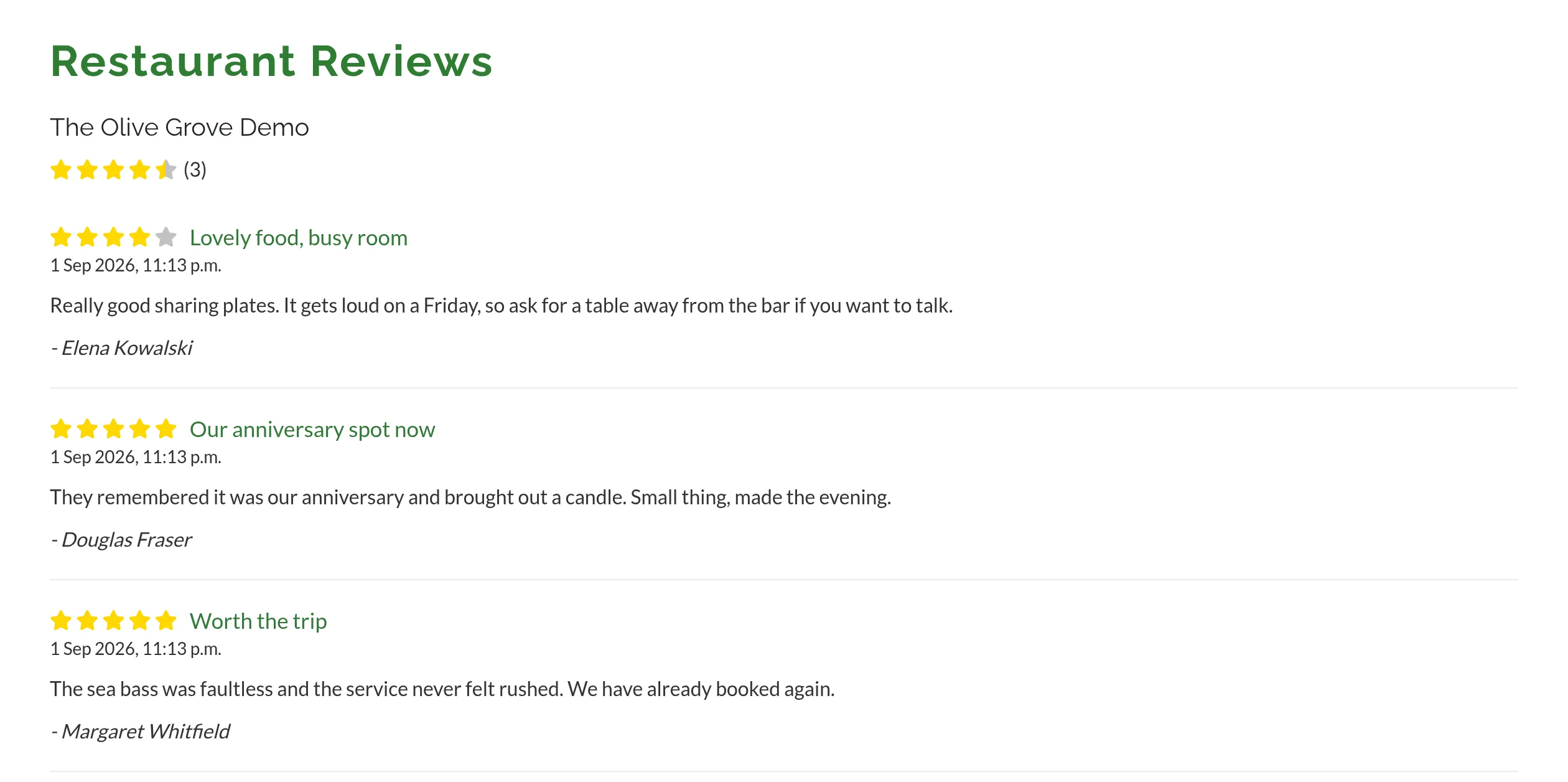
What each review shows
Every review is made up of:
- The rating — a score from 1 to 5 stars.
- A title — a short headline. Optional, so not every review has one.
- The date — when the review was last updated. If the guest comes back and edits it, the date moves with the edit.
- A comment — the body of the review. Also optional, which means some reviews are stars-only.
- The reviewer's name — the full name on the guest's account, shown next to the review.
The reviews page shows ten reviews at a time, newest first. Use the pagination at the bottom of the page to step further back.
In the list, each review shows the guest's name, their stars, the date, the title or the first line of the comment, and whether it has been Replied to or is Awaiting reply. Tap a review to open it in full. The review page also shows:
- The visit — the date, time and party size of the booking the review is about. Tap it to open the booking, just as you would from the Diary.
- The guest — tap their name to open their guest profile. If the booking was never linked to a guest in your guest book, the page says so instead.
- Your reply — what has been published under the review, who wrote it and when, or the button to write one.
Your star average
The big rating in the top section of your listing is the straight average of every rating you have ever received, rounded to the nearest half star for display. The count next to it is the total number of reviews behind that average.
Both numbers refresh the moment a review is added, edited, or deleted — there is no overnight recalculation or delay.
Replying to a review
A reply is published under the review on your public listing, headed Response from your business name, with the date it was written. Guests looking you up see it next to the review it answers. Replies are the business' public voice, so only Owners and Admins can write them; Staff can read every review and its reply, but not answer.
Replies cannot yet be written from the manager site — that is coming with the Reviews page. In the meantime an Owner or Admin can publish one from the mobile app, and anything published there shows on your listing straight away.
If you would rather follow up on a specific review privately — to thank a guest, to apologise, or to invite them back to make things right — write to them yourself:
- Find the booking the review is for on the Bookings list. Search by the guest's name to narrow it down.
- Open the booking and copy the guest's email address from the customer details.
- Reply from your own email account — guests respond best to a note from the restaurant directly, not from a platform.
- Open the review from More → Reviews or from the Inbox.
- Under Your reply, tap Reply to this review. Write your reply — up to 2,000 characters — and tap Publish reply.
- The reply appears on the review page at once and on your public listing moments later. If it could not be published — a dropped connection, say — the app tells you and puts things back as they were, so try again.
To change a reply, open the review and tap Edit next to Your reply. There is only ever one reply per review: editing replaces what was published, and the date shown to guests moves to the time of the edit.
If you would rather follow up privately, tap the guest's name to open their profile and reach them by phone, message or email from there.
Reviews you cannot edit or remove
Reviews belong to the guest who wrote them. Only the guest can edit the rating or comment, or take it down. You cannot edit a review on your guest's behalf, and you cannot remove a review just because you disagree with it.
If a review crosses the line — abuse, spam, impersonation, or something obviously fake — see Moderating reviews for how to flag it with us.
Asking for more reviews
There is no in-product "request a review" button. The review email is sent automatically to every guest with a Completed booking and an email address on file — see How reviews work. The most effective thing you can do is make sure phone and walk-in bookings get an email address captured at the table, so those guests get included in the next day's batch.
Where to go next
- How reviews work — when the email goes out and how a guest's review reaches you.
- Moderating reviews — what to do if a review breaks our guidelines.
- Guest profiles — finding a guest's contact details when you want to follow up.