Connecting Square is a short, two-step job: sign in to Square to grant access, then choose which of your Square locations this restaurant uses. There are no keys to copy or settings to fill in by hand — Square handles the sign-in for you. For what the connection then does, see Square overview.
Before you begin
- A Square account with at least one location set up, and the sign-in details for it to hand.
- Admin access on your business in Make a Rezzy.
Connecting Square
- Sign in to manage.makearezzy.com and pick your business.
- Open Integrations from the left-hand menu and choose Square.
- Select Connect. You will be taken to Square to sign in.
- Sign in to Square and approve the access Make a Rezzy asks for. In plain terms, you are allowing Make a Rezzy to open and read checks on your behalf, and to see your list of locations. Square then sends you back to Make a Rezzy.
- Back in Make a Rezzy, choose the location that matches this restaurant from the list of your Square locations.
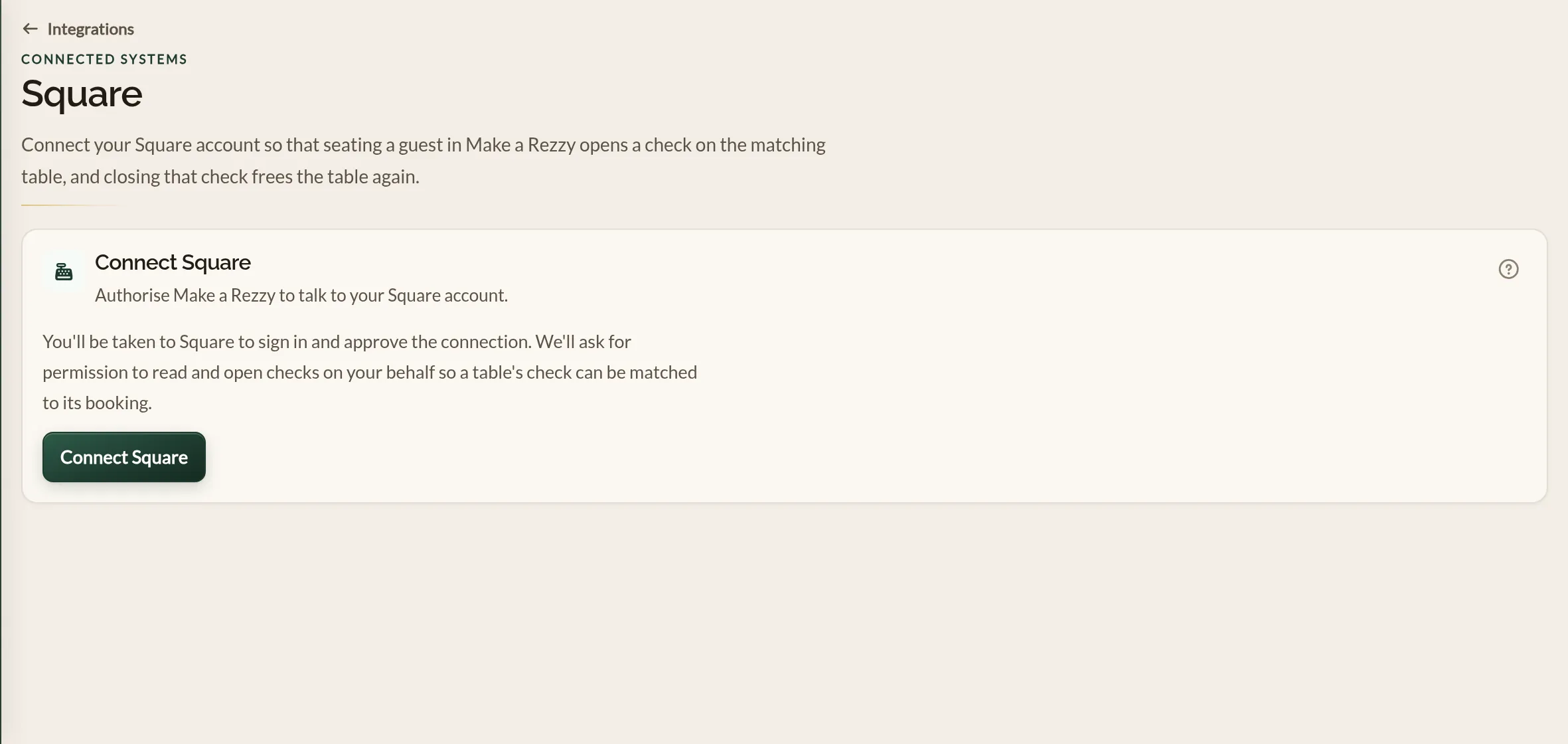
Once a location is chosen, the page shows Square as connected and the table sync is live. That is everything — there is nothing to set up on the Square side.
Disconnecting
To stop the sync, choose Disconnect on the Square integration page. This removes the link and revokes Make a Rezzy's access on the Square side, so no further checks are opened. Your bookings and your Square data are untouched. You can reconnect at any time by following the steps above again.
Where to go next
- How the table sync works — what happens once you are connected.
- Troubleshooting — fixes for the most common problems.
See also: The Square integration