The Live Floor Plan is the picture of your restaurant as it is right now — which tables are sat, which are free, and who is on each one. It is the screen to keep open at the host stand during service.
Opening the Live Floor Plan
In the manager site, head to Floor Plan. The page shows whichever plan is active right now, based on your availability settings.
In the mobile app, open Diary and switch to Floor. You will see the plan in use for the day you are looking at, with tables colour-coded by state. The Floor view only appears once your business has a floor plan.
What the colours mean
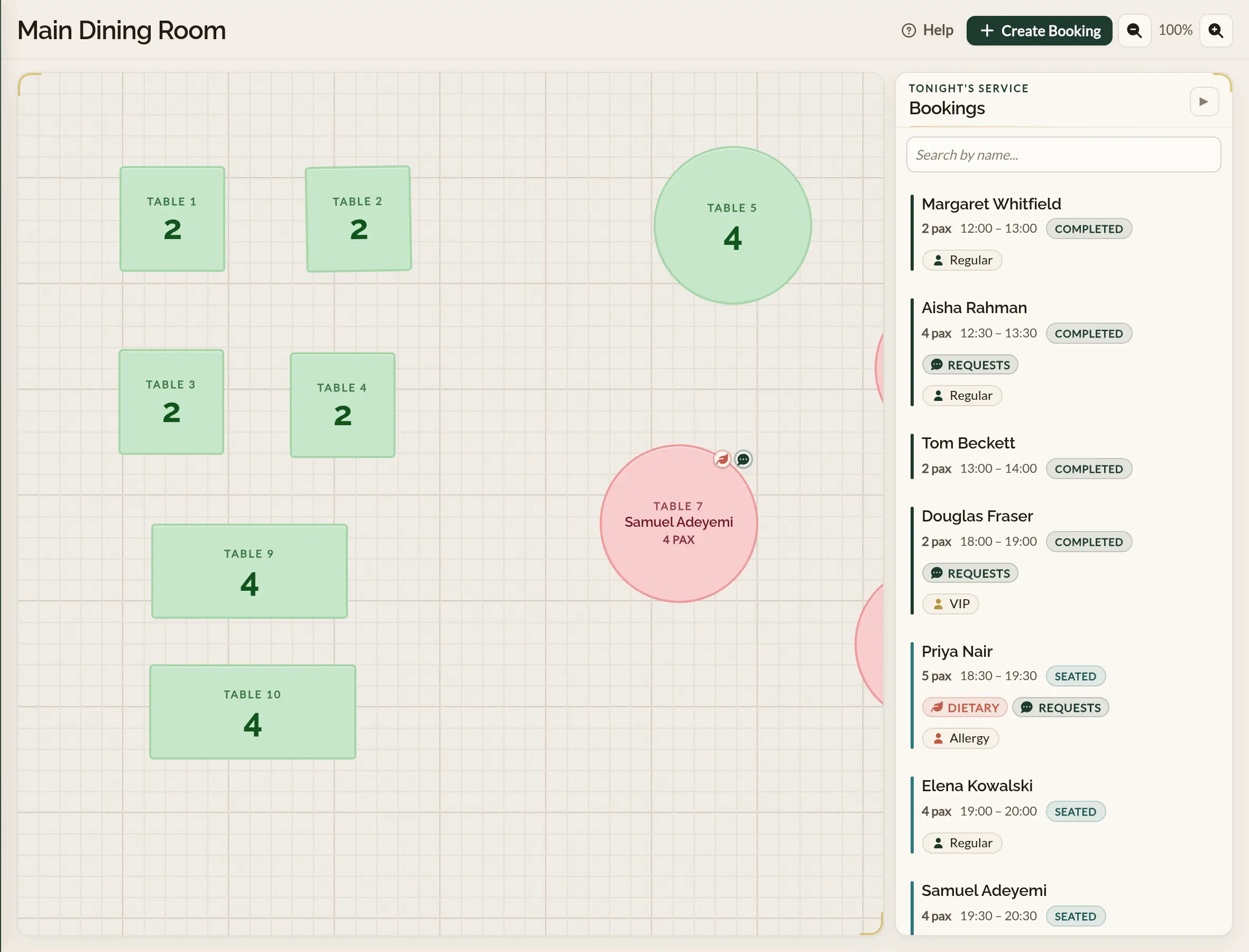
- Green — the table is free right now. The number on it is the table's capacity.
- Coral — the table is occupied. The label shows the guest's name and the party size.
The mobile app colours tables a little differently, and a legend in the corner of the plan spells it out: green means a party is seated there now, amber means the next party is due — the label shows their arrival time and party size — and white means the table is free, with its capacity shown.
Annotation icons appear in the corner of a table when the booking on it has special requests or notes.
A small coloured dot appears in the corner of a table when the money on its booking needs something from the floor — an amount still to collect, or a deposit already paid that comes off the guest's bill. Bookings that are fully settled do not raise a dot. The booking in the side panel spells out which it is, and Deposits and refunds covers what each label means.
The Live Floor Plan is about the room, so bookings for a bookable service are left off it. They stay on the Calendar's Services view and on the Bookings list.
The view is read-only
The Live Floor Plan is for seeing, not for shuffling. You cannot drag a table to a new spot, resize it, or move a booking from one table to another here.
- To redesign the room, head to Designing your floor plan.
- To move a booking to a different table, do it on the Calendar — see Moving a booking to a different table.
Tapping a table
An empty (green) table:
- Click once to see a small popover with the next booking on that table (or "No upcoming bookings"), and a Create Booking button that opens the booking form with the table already chosen.
An occupied (red) table:
- Click once to highlight the booking in the side panel.
- Double-click (or press and hold) to open the booking in the edit form.
A free (white) table:
- Tap once to seat a walk-in there. The quick-add sheet opens with that table picked; tap another if you change your mind.
A seated (green) or expected (amber) table:
- Tap once to open the booking — the party seated there, or the next party due — with its status actions.
- Press and hold a seated table to open the booking in the edit form.
Zooming and panning
Use the zoom controls in the toolbar to fit the plan to your screen or get in close on a busy section. Scroll to pan around when you are zoomed in.
Pinch to zoom in or out. Drag with one finger to pan around the canvas. Alternatively, use the zoom controls to fit the plan to your screen or get in close on a busy section.
Live updates
The Live Floor Plan refreshes itself. Tables flip from green to red the moment a booking starts, and back to green when it ends. Bookings taken or edited by someone else on your team appear on your screen without you having to refresh.
If the plan looks empty
A blank Live Floor Plan usually means one of two things:
- No tables have been added to the active plan yet. Head to Designing your floor plan to add some.
- No availability is currently active — Make a Rezzy does not know which plan to show. Check your availability settings. This is also expected behaviour when you are outside of your opening hours, so if you are looking at the Live Floor Plan outside of service times, this is probably why.
Where to go next
- Calendar overview — the timeline view, where you can also reschedule and reassign bookings.
- Designing your floor plan — when the picture you are seeing here does not match the room.
- Linking tables to services — when the wrong plan keeps coming up at the wrong time.
See also: Restaurant table management