As your guest list grows, you will want to pull out a particular group — your regulars, your big spenders, the people who have not been in for a while. This article covers filtering the list, saving a filter to reuse, and exporting your guests to a spreadsheet.
Filtering the guest list
On the Guests page, click Filters to open the filter panel. A small badge shows how many filters you have on. You can filter by:
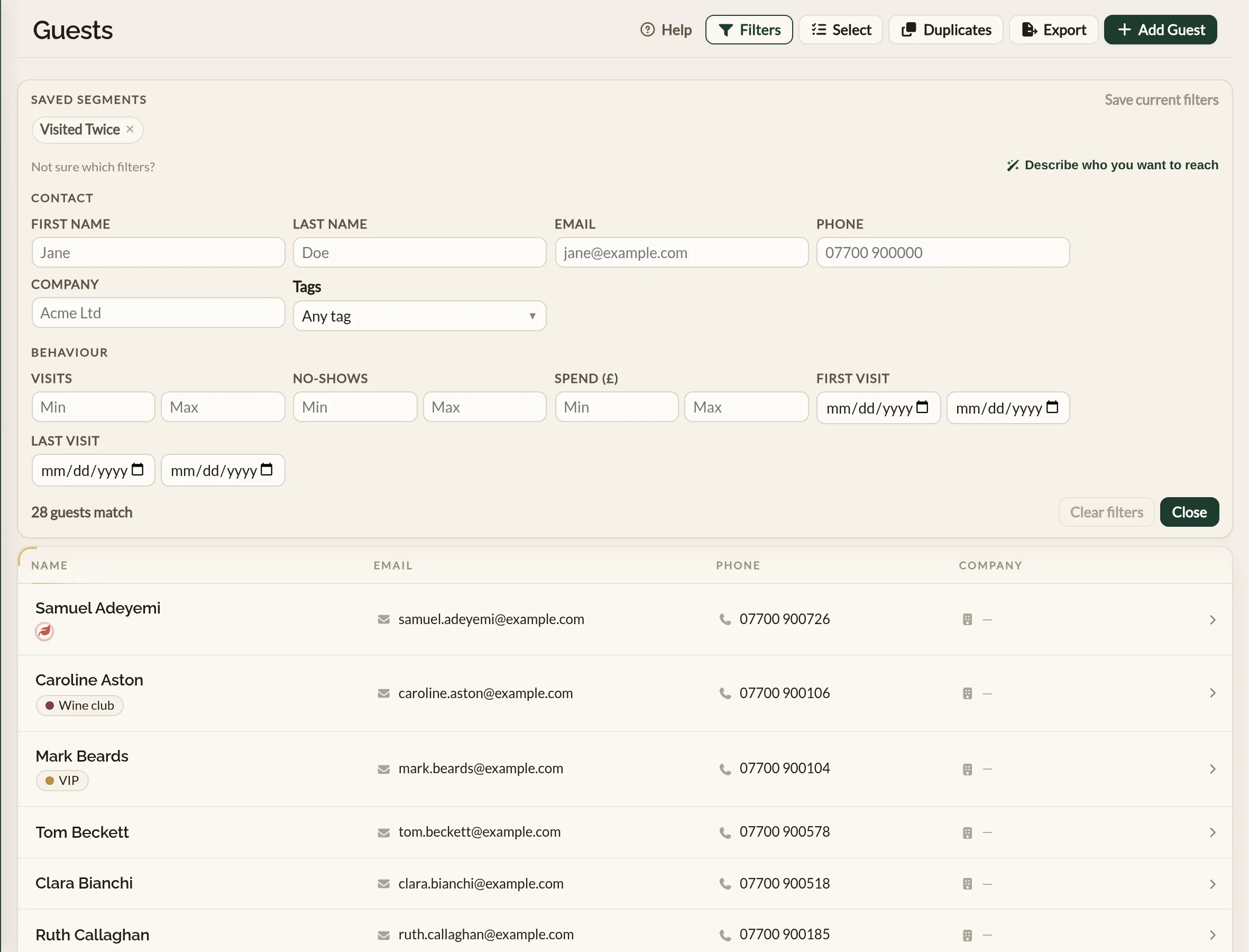
- Contact details — first name, last name, email, phone, or company. Each is a contains-match, so typing "smi" into last name pulls up Smith, Smithson, and Goldsmith.
- Tags — narrow to guests carrying a particular tag, such as your VIPs.
- Behaviour — set a lowest and highest figure for visits, no-shows, or amount spent, and a date range for first or last visit. For example: last visit before March, with at least three visits — your lapsing regulars.
As you adjust the filters, a running count tells you how many guests match, so you can tune the group before you do anything with it. The list updates to show only the guests that match.
You can also describe the group in your own words: select Describe who you want to reach in the filter panel, type something like "regulars we haven't seen since spring", and select Suggest filters. The AI turns your description into guest filters, explained and with a count of how many guests match — and nothing changes until you select Use these filters. The filters then land in the panel for you to check, adjust, or save as a segment.
Saving a filter as a segment
A filter you will want again — "lapsing regulars", "big spenders", "birthday this month" — can be saved as a segment so you do not have to rebuild it each time.
- Build the filter you want.
- Click Save current filters, give the segment a name, and save it.
Your saved segments sit at the top of the filter panel. Click one to apply it, or remove one with the cross beside its name. You need at least one filter set before a segment can be saved.
Exporting to a spreadsheet
Click Export on the Guests page to download your guests as a CSV file, ready to open in a spreadsheet. The export honours whatever filter or segment you have on, so you can export just the group you have narrowed to rather than the whole list.
The file includes, for each guest:
- Name, email, phone, and company.
- Notes, seating preference, and dietary restrictions.
- Tags.
- Total visits, last visit, and lifetime spend.
- Whether they have opted in to marketing email, and when they opted in.
- The date the guest was first added.
Where to go next
- Tags — set up the labels you can then filter by.
- Guest profiles — what each guest record holds.
- Marketing consent — how consent is captured and what you can do with it.
See also: The restaurant guest CRM