The Calendar is built around a single day at a time. This article covers how to move between days, how to switch between the Tables and Services views — and, just as importantly, what the Calendar will not do for you yet, so you know when to reach for the Bookings list instead.
Moving between days
A row of date controls sits above the timeline:
- The left and right arrows step back or forward one day at a time.
- The date in the middle shows the day you are currently viewing — for example, "Wednesday, 27 May 2026" — along with a friendlier label like "Today" or "In 5 days".
- Tapping or clicking the date opens a date picker so you can jump straight to any day.
- A Today button snaps you back to the current day from wherever you have wandered.

When you change date, the Calendar reloads the bookings for the new day. Anything you had selected on the previous day is cleared.
Switching between Tables and Services
If your business offers both table bookings and bookable services, a Tables | Services switch sits at the top of the Calendar:
- Tables — the day by table: every table booking parked on the row for its table.
- Services — the day by team member and service: appointments, classes, and their sessions. See Calendar overview for what each row shows.
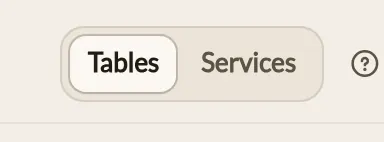
Each view shows its own side of the diary — a table booking appears in the Tables view, and a service booking in the Services view. If your business offers only one or the other, there is no switch; the Calendar simply opens on the view that applies to you.
In the mobile app the Diary's Timeline has the same Tables / Services switch for businesses that offer both, and opens on the view that applies when they offer only one.
What the Calendar does not (yet) do
The Calendar is deliberately a single-day view. It does not have a week or month overview, and it does not filter the bookings shown on a given day. That means:
- No week or month view. To see what next Friday looks like, change the date and look at that day on its own.
- No meal-period filter. The view you are on shows its whole day, lunch and dinner alike, midnight to midnight.
- No room or area filter. All your tables appear in the table list, regardless of which area of the restaurant they belong to.
- No status filter. Confirmed, Pending, Seated, and Completed bookings all share the timeline. (Cancelled and No-Show bookings do drop out automatically — see Calendar overview.)
- No search by guest name.
When to use the Bookings list instead
For anything that needs filtering, searching, or seeing across more than one day, the Bookings list is the right tool.
A good rule of thumb:
- Use the Calendar to run the service in front of you — who is sitting where on a given day.
- Use the Bookings list to look something up — find a specific guest, pull all of next week's bookings, or review the no-shows for the month.
- Use the Live Floor Plan to see a real-time view of your restaurant's layout and table availability.
- Use the pre-shift brief to prepare for a service — everyone booked for the day with their visit history, dietary needs, and requests in one glance.
See How bookings work for where the Bookings list lives and the columns it offers.
Where to go next
- Calendar overview — the layout, the colours, and what each booking block tells you.
- Moving a booking to a different table — drag a booking onto a new row without opening the form.
- Modifying a booking — for changes the Calendar cannot make on its own.
See also: The restaurant booking diary