The Team page keeps a record of the people who work at your business — their names, job titles and photos — so you can manage your staff in one place.
Team members and sign-ins are different things
A team member is a record of a person who works at your business. They do not need to register their own account — you can add your whole team without any of them ever logging in to Make a Rezzy or filling out any registrations. If someone does have a sign-in, you can link the two together so their records can sit side by side.
To give someone access to your business, see Inviting your team.
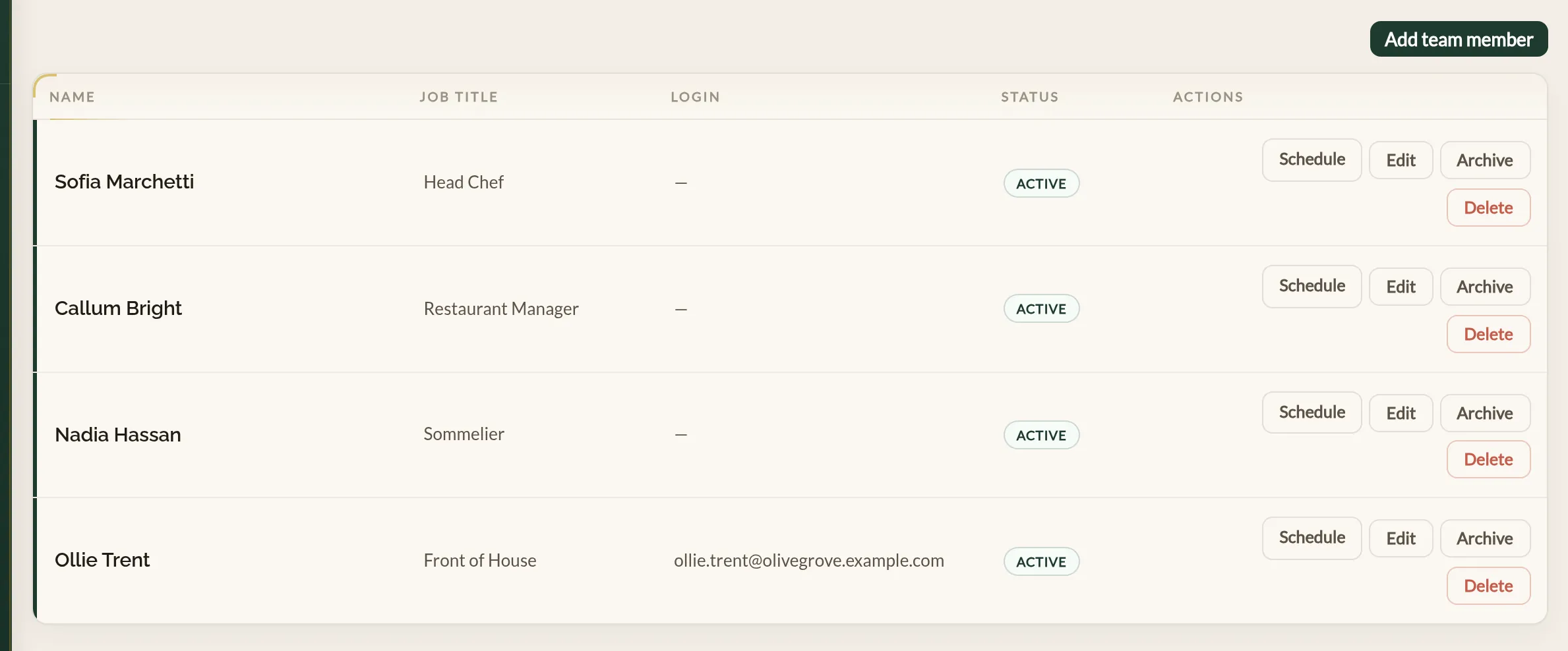
Adding a team member
- Open Team in the management menu.
- Choose Add team member.
- Enter their first and last name. You can also add a job title, a photo, and a display name — the name customers will see instead of their full name.
- Choose Save.
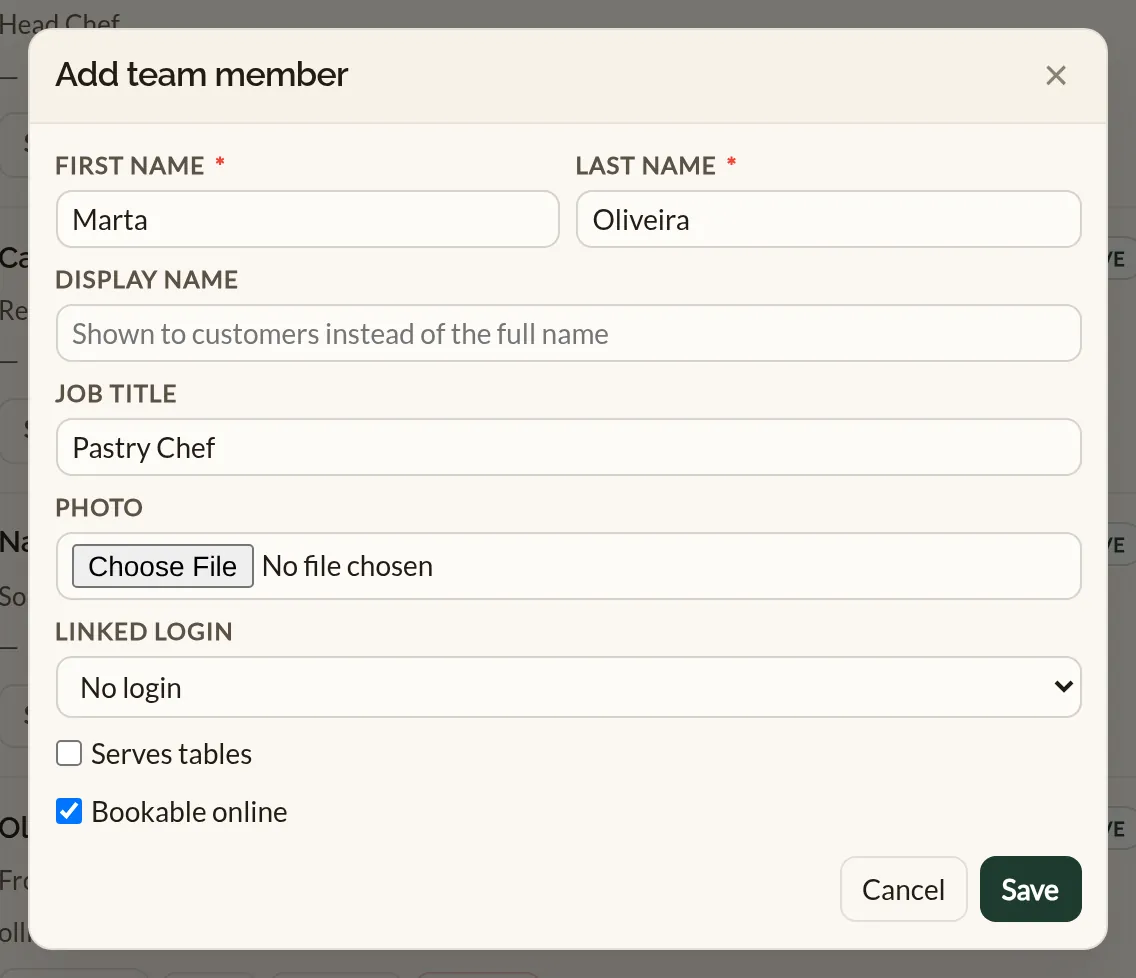
Linking a team member to their sign-in
If the person already has access to your business, pick their email address under Linked login when adding or editing them. Each sign-in can be linked to one team member.
Linking matters in the app: a member whose sign-in is linked gets My day under More — their own appointments and sessions for the day, with their hours. See Your team on your phone below.
Archiving and deleting
When someone leaves, archive them. An archived team member is hidden from day-to-day use but their record is kept, and you can restore them at any time — useful for seasonal staff.
Services and bookings
Tick the services each team member delivers under Services they deliver. The same mapping can be set from the other side, under Team members who deliver this on the service form, and the Team list shows each person's services at a glance. Once assigned, they can be given appointment bookings — open a booking and pick them under Team member — and set as the person who runs a class's sessions. Make a Rezzy will not let the same person be booked in two places at once.
Bookable online controls whether a team member counts towards a service's online availability when the service needs a free team member — switch it off for someone who helps out but should never fill an online booking. See Service schedules and capacity for how availability works.
Working hours
Each team member has their own rota. Choose Schedule next to a team member on the Team page to open it.
Working hours are set as schedule periods. A period runs from a start date to an end date — leave the end date blank and it runs until further notice — and holds the hours worked on each day of the week. You can give a period a name, such as Term time, and line up several periods back to back when someone's hours change for a while and then return to normal.
If someone works an alternating rota, set the period to repeat every 2, 3 or 4 weeks and fill in each week's hours on its own tab.

Dates not covered by any period count as not working. A team member with no schedule at all is treated as available whenever their services run. When a service's online availability depends on a free team member, only people within their working hours are counted.
Changing a single day
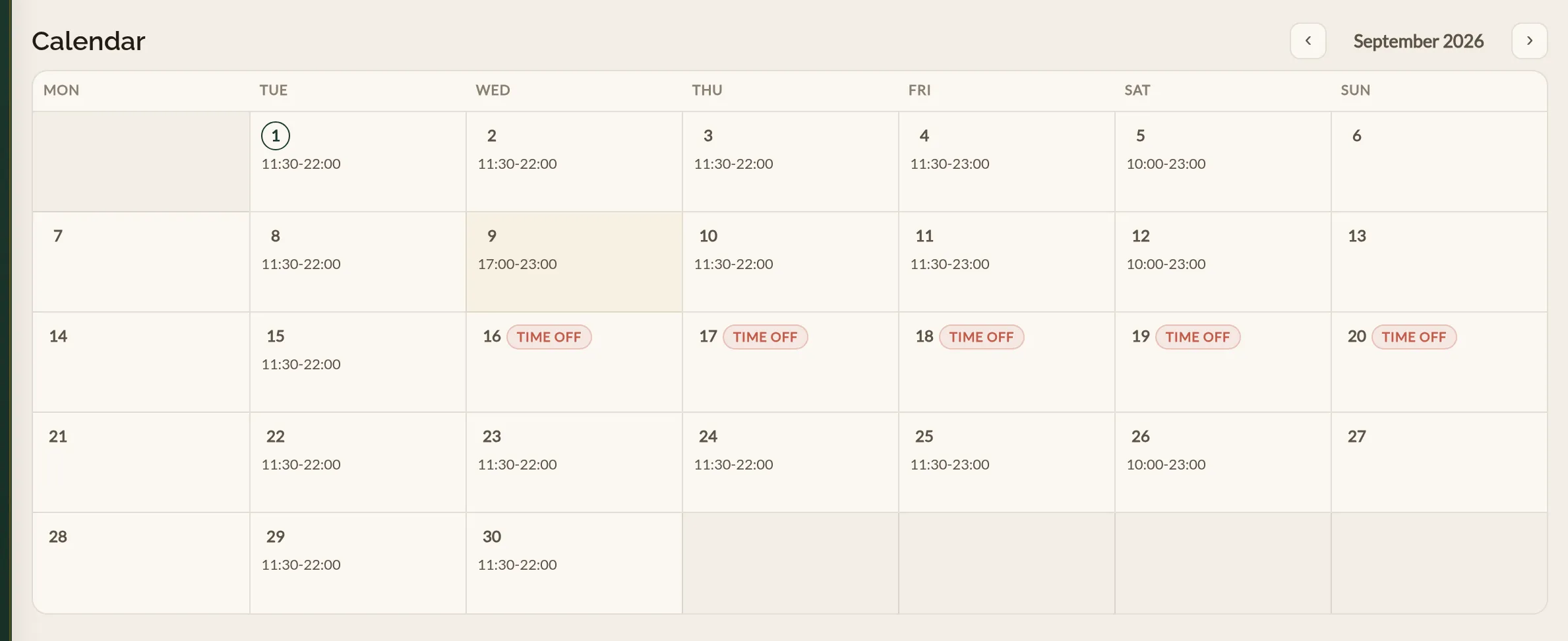
Choose Change a day on the schedule page to change one date's hours — or take it off entirely — without touching the rest of the rota. The date is marked as a day override in amber, and Switch back to regular hours restores it to the surrounding pattern.
Time off
Book holiday, sick days or other absences under Time off on the schedule page: pick the first day off and the day they are back. Time off blocks bookings for those days without changing the schedule itself, so their regular hours resume as soon as they return.
The calendar on the schedule page shows the month at a glance — each date's working hours, day overrides and time off — so you can check a rota before it takes effect.
Your team on your phone
The mobile app shows the team read-only: who is working today, their hours and time off, and each member's day — from which a guest can be booked in with that member. Switch this article to Mobile for the detail. Adding members, linking sign-ins, archiving, working hours and time off are all set here on the web.
Open More and tap Team to see your active team members in their usual order, each with their working hours for today — or Not working today, or No rota set for someone with no schedule at all — and an amber badge for anyone on holiday, off sick or otherwise away. Your own record, when your sign-in is linked to one, is marked You.
Tap a member to open their day: their hours, a count of appointments, sessions and guests, then everything they are doing in start order — the appointments they are serving, and the class sessions they run with how many places are taken. Tap an appointment to open the booking; tap a session to open the class with its roster. Arrows at the top step to another day.
If the member provides an appointment service, their day also has Book with name: it opens the booking form with them already chosen, offers only the services they provide, and shows only the times they can take. See Taking a booking by phone for the rest of the form.
If your own sign-in is linked to a team member record, the same screen is My day under More, headed with your name. Marking a guest Seated from the booking is how you check them in.
Adding or archiving team members, linking sign-ins, and changing working hours or time off are done on the web. Edit on web on the Team list, and Rota on web on a member's day, open the right page on the manager site.
Where to go next
- Inviting your team — give team members their own sign-in and role.
- Creating a service — set up the services your team will deliver.
See also: Every feature in Make a Rezzy