Discount codes give guests money off your paid services and events — a percentage or a fixed amount, applied when they book. This article covers creating a code, choosing what it applies to, limiting how it is used, what guests see at checkout, and how to read the results.
Creating a discount code
- Sign in at manage.makearezzy.com.
- Open Discount Codes from the left-hand menu, under Campaigns.
- Click Add discount code.
- Enter the code itself — 3 to 32 characters using letters, numbers and hyphens, like SUMMER10. This is what guests type at checkout, so keep it short and easy to spell. Guests can type it in any mix of upper and lower case.
- Give it a name for your own records, and an optional description. Only your team sees these — guests see the code.
- Choose the discount, what it applies to, and any limits — covered below.
- Click Create discount code.
Choosing the discount
A code takes money off in one of two ways:
- Percentage — a percentage off the booking total, up to 100%.
- Fixed amount — a set amount off, applied either per booking (£10 off the total, whatever the party size) or per person (£5 off for each guest on the booking).
A discount can never take the price below zero — if a fixed amount is larger than the booking total, the guest simply pays nothing.
What a code applies to
Codes work on services and events that guests pay for — whether they pay online when booking, or on arrival at the venue. Each code either applies to all of your paid services and events, or only to specific ones you pick.
Limiting how a code is used
Each code can carry any combination of limits:
- Starts / Ends — the window in which the code can be used. Leave the start empty to start straight away, and the end empty to run until you disable it. Outside the window the code shows as Scheduled (not started yet) or Expired, and guests who try it are told it is not valid.
- Redemption limit — the total number of times the code can be used across all guests, for example the first 50 bookings. Once reached, the code shows as Fully redeemed.
- One use per guest — each guest can use the code once. Guests are matched by the email address on their booking.
What the guest sees
For a service or event paid online at the point of booking:
- The guest books as normal and lands on the payment page, which itemises the booking — the price per person, the number of guests, and the total.
- They enter the code under Have a discount code?. The bill updates to show the discount and the new total to pay, and they pay the discounted amount.
- With a 100% discount there is nothing to pay — the booking confirms straight away, with no card form.
For a service or event paid on arrival, the guest enters the code on their booking page instead — the page linked from their confirmation email. The discount is recorded on the booking for your team to honour when the guest pays at the venue.
Either way, the discount appears on the booking's confirmation email and in the booking's details in Make a Rezzy, so your team can always see which code was used and how much came off. Open the booking's Payment section and the breakdown names the code alongside both prices — Total at full price and Total to pay after the code — along with what has been paid and what is left. The payment label on the booking itself shows the discounted figure; hover it to see the full price the code came off. See Deposits and refunds.
When a use is counted
Entering a code does not use it up by itself. A use is counted when the guest actually pays — or, for bookings paid on arrival, when your team marks the booking Completed after the visit. A guest who applies a code but abandons the payment has not used it.
Editing a code that has been used
Once a code has been used, the parts that shaped what guests were promised are locked: the code itself, the discount, what it applies to, and its start date. You can still rename it, change its end date, change its limits, or disable it.
This protects your records — every use of the code was taken at the discount that applied at the time, and that history stays accurate. If you want to change the offer itself, disable the code and create a new one.
Disabling, re-enabling and deleting
Disable code on a code's page stops it immediately — guests who try it are told it is not valid, including anyone who has applied it but not yet paid. Disabling is reversible: Re-enable code switches it back on with its limits and history intact.
A code that has never been used can be deleted from its page. Once it has been used it can only be disabled, so the bookings that used it keep their record of the discount.
Tracking how a code performs
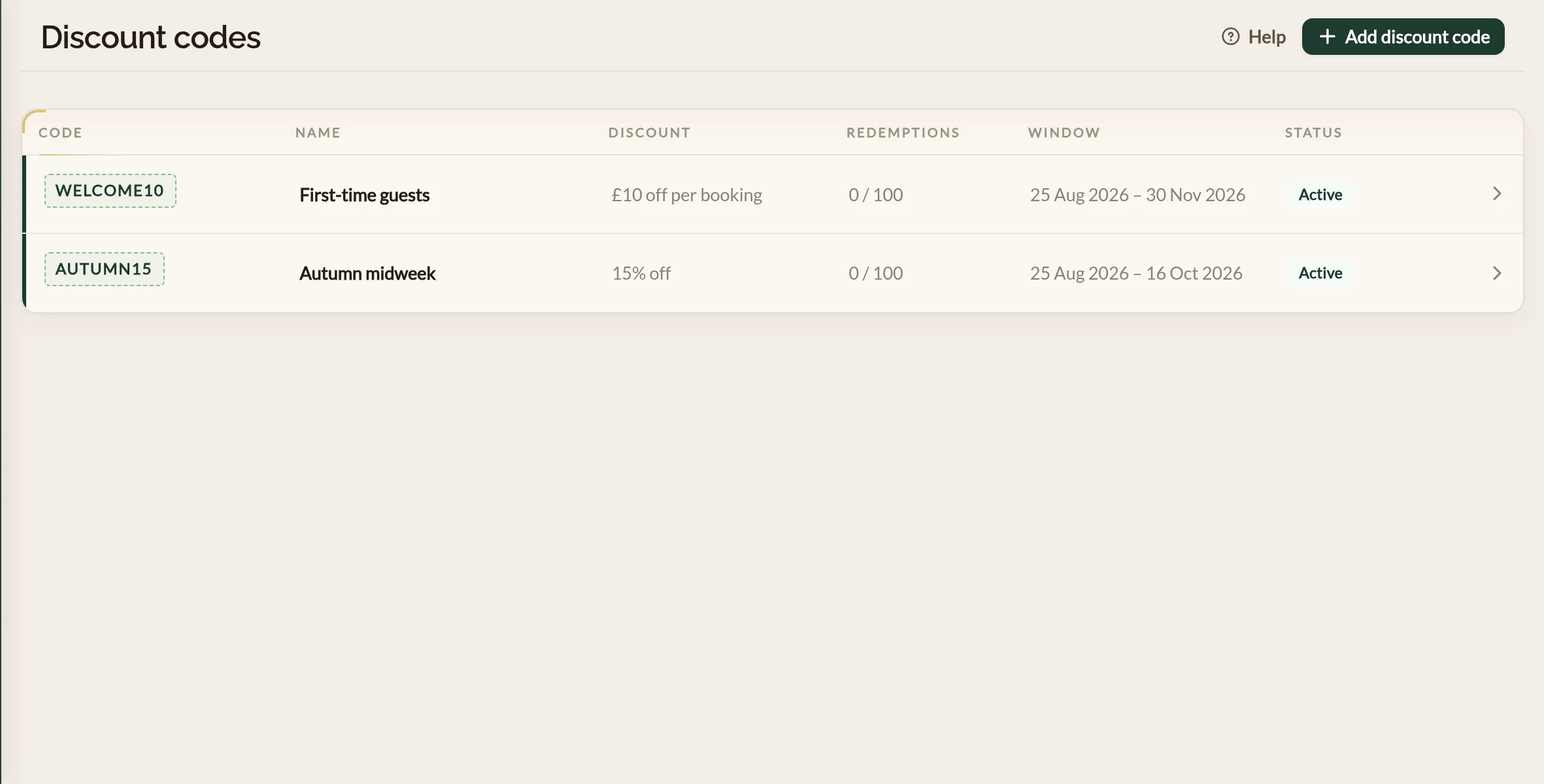
The Discount Codes page lists every code with its status — Active, Scheduled, Expired, Fully redeemed or Disabled — and how many times it has been used, such as 12 / 50 against a limit. Open a code to see the total amount discounted and each redemption: the booking, the guest, the amount taken off, and when it was applied.
Where to go next
- Creating a service — setting up a bookable service, including its payment rules.
- Event ticketing and pricing — how paid events charge guests.
- Deposits and refunds — deposits are separate from the price of a visit and never discounted.