The Calendar is the diary view your team will live in during service. It lays the day out as a timeline — one row per table (or per team member and service, if you offer bookable services), one hour per chunk of width — so you can see at a glance who is where, and when.
What the Calendar shows
The Calendar is a single-day view. The day runs from midnight to midnight along the top, and your tables run down the left-hand side. Every booking is a coloured block parked on the row for its table, sitting between its start and end times. If your business offers bookable services, the day can also be laid out by team member and service — see The Services view below.
A booking that has not been given a table yet sits in an Unassigned row at the top, above your tables. The row only appears on days that have one. See Moving a booking to a different table for how to place it.
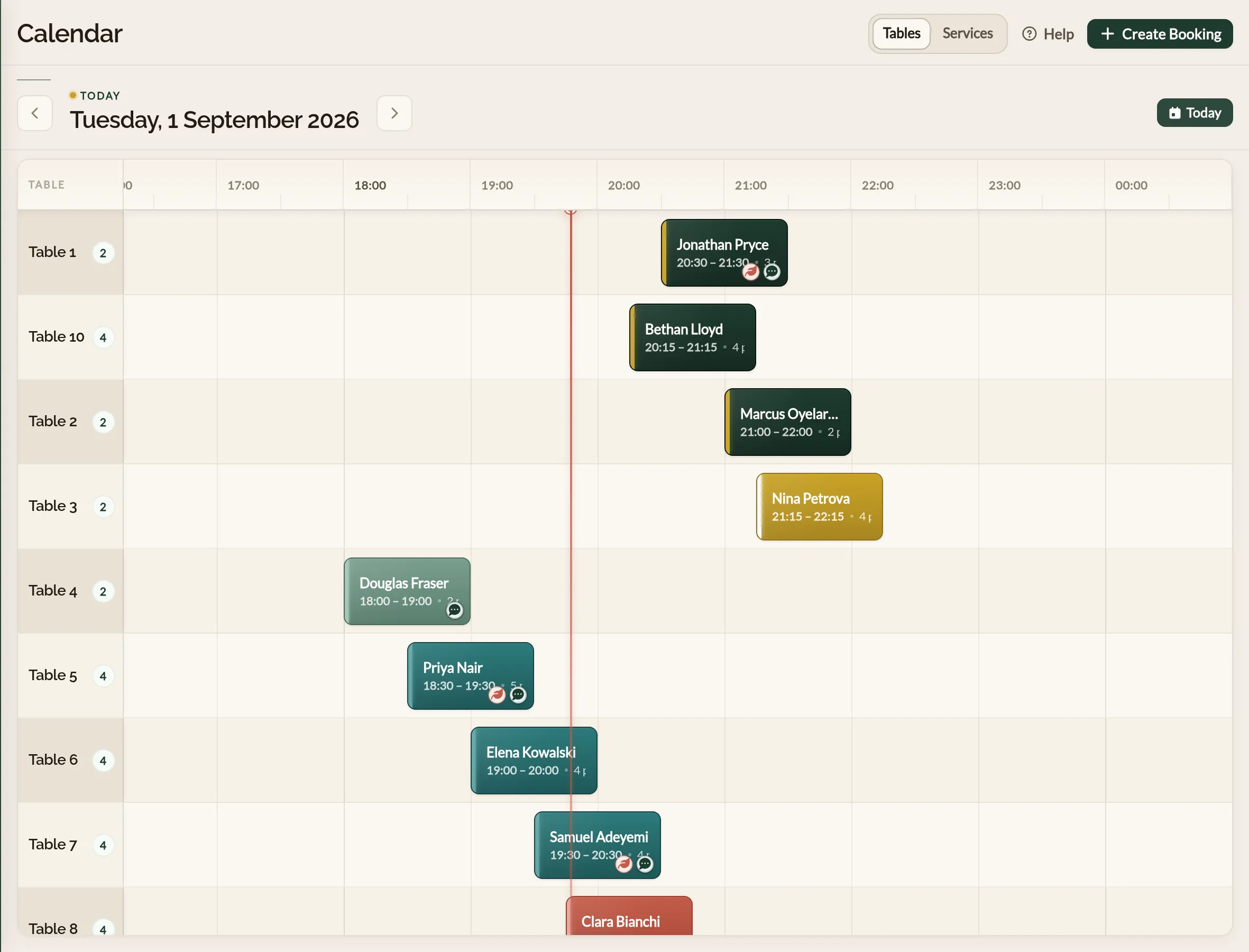
A vertical red line marks the current time so you can see what is happening right now without having to read the clock.
What each booking shows
Each booking block shows, at a glance:
- The guest's name.
- The party size (for example, "4 pax").
- The booking window, start to end time.
- The booking's status, conveyed through the block's colour (see below).
- Small annotation icons in the corner if there are allergies, special requests, or notes attached.
Hover (or tap) the block for a tooltip with the same details laid out in full, including any annotations.
A block also carries a payment label when there is money on the booking — paid, part paid, still owed, due on arrival, or a deposit to take off the bill. A short booking leaves no room for the label, so the tooltip always carries it as well. See Deposits and refunds for what each one means.
What the colours mean
Booking blocks are colour-coded by status so you can read the room without picking up a single booking:
- Green — Confirmed. The booking is set and the guest has been emailed a confirmation.
- Amber — Pending or Pending Payment. Awaiting your confirmation or a deposit.
- Teal — Seated. The guest has arrived and is at their table, in service.
- Light green — Completed. The guest has finished and left.
For the full picture on what each status means and when bookings move between them, see How bookings work.
The Services view
If your business offers bookable services — appointments, classes, or open-access sessions — the Calendar has a second way of laying the day out. Businesses that offer both tables and services can flick between the two with the Tables | Services switch (see Filtering and views); a services-only business lands straight in the Services view.
Instead of tables, the rows are:
- A row per team member — their appointments, and any classes they run, sit on their row. The hours they are not working are shaded, and booked time off is marked, so you can see at a glance who is free.
- An Unassigned row — appointments that nobody has been assigned to yet gather here, so they are easy to spot and hand out.
- A row per class or open-access service — each class session appears as a block showing how many places are taken, for example "3 of 12 booked". Sessions show even before anyone books, so you always see the day's full timetable. Click a session to book a guest onto it — the form opens with the class and the time already chosen; see Taking a booking by phone.
Service bookings are colour-coded by status in exactly the same way as table bookings, and the view updates live in the same way too. If the Services view is empty, it will prompt you to add a service and your team members first — see Creating a service.
In the mobile app, open Diary and switch to Timeline. The rows are the same as on the web: one per team member with their off-duty hours shaded and time off marked, an Unassigned row, and one per class or open-access service with each session showing how many places are taken. A business that offers both tables and services gets a Tables / Services switch above the timeline.
Live updates
The Calendar updates itself. When someone else on your team takes a booking, edits one, or marks a guest as completed, the change appears on your screen without you needing to refresh.
Bookings that move to Cancelled or No-Show drop out of the Calendar view altogether, freeing the table visually. You can still find them in the Bookings list.
If the Calendar looks empty
If you have not added any tables yet, the Calendar will tell you so and point you at the Floor Plans area to add some. Until tables exist, there is nowhere to park a booking. See Designing your floor plan to get set up.
Floor plans determine what tables exist. If the Diary's Timeline comes up without any table rows, add tables to a floor plan on the web under Floor Plans. Once they exist, they will appear in the mobile app automatically.
Where to go next
- Filtering and views — moving around the Calendar, and what the Calendar will and will not do for you yet.
- Moving a booking to a different table — the drag-and-drop shortcut.
- How bookings work — the booking statuses behind those colours.
See also: The restaurant booking diary