The Make a Rezzy reservation widget is a small block of code you paste into your own website. It gives guests a clear "Book a table" entry point on your homepage or bookings page — either an inline form they complete without leaving your site, or a button that opens a secure Make a Rezzy booking page in a new tab — so you do not have to build or maintain a separate booking system of your own. This article walks through creating a widget, copying the embed code, and adding it to your pages.
What the widget is, in one sentence
A reservation widget is a small "Book a table" element — either a single button, or an inline form where guests pick the date, party size, and time directly on your page. With the inline form they enter their details and confirm the booking without leaving your site; with the button, a Make a Rezzy booking page that picks up your brand colours opens in a new tab. Every booking lands in your diary alongside bookings from your listing pages and the phone, so your team only has one place to look.
Creating a widget
Every business can have any number of widgets — for example, one on the homepage and a different one on your private-dining page. To create your first widget:
- Sign in to manage.makearezzy.com and pick your business.
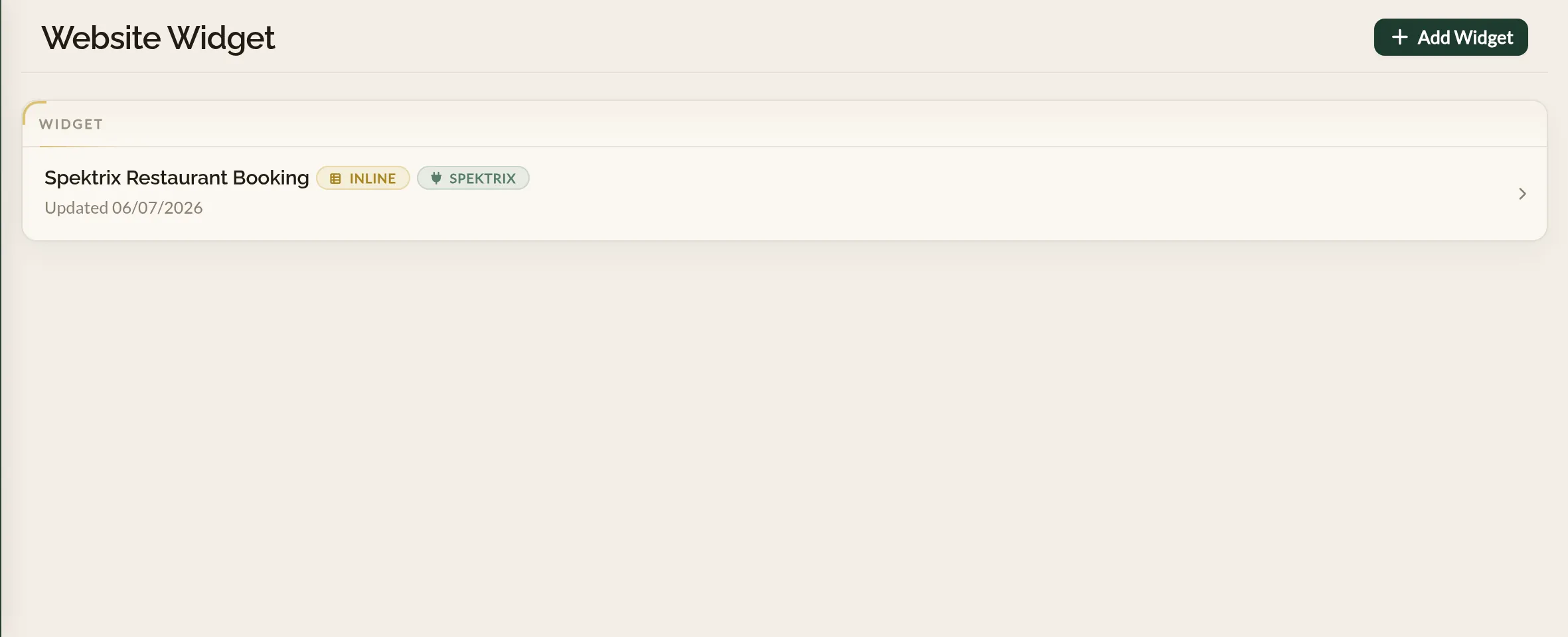
- Open Website Widget from the left-hand menu.
- Click Add Widget in the top-right of the page.
- Give the widget a name — this is for your own reference (for example, "Homepage CTA" or "Events page"). Guests never see it.
- Choose an integration. Pick "None" for a standalone booking widget, or choose the integration you would like to use - See Widget integrations for more on what they do and how to set them up (you can always change the integration later).
- Click Create Widget.
- Under Variant, choose between a Button or an Inline widget.
- Under Allowed domains, add the address of the website you will paste the widget on (for example, www.yourrestaurant.com). This is for security — so that only your website can directly confirm bookings via the inline widget.
- Customise your widget - see Customising the widget for the full set of controls.
Getting the embed code
The embed code lives on the left of the configurator under Embed snippet. It looks like this:
<div data-makearezzy-widget="your-widget-id"></div>
<script defer>
  (function () {
    fetch("https://www.makearezzy.com/api/reservation-widget/v1/embed/?version=1")
      .then(function (r) { return r.json(); })
      .then(function (d) {
        var s = document.createElement("script");
        s.src = d.url;
        document.head.appendChild(s);
      });
  })();
</script>
Click Copy snippet below the code block to copy the whole thing to your clipboard.
Pasting the snippet into your site
The snippet is plain HTML and JavaScript — it works on any website that lets you paste a block of custom HTML. The exact steps depend on what your site is built with. For instructions on WordPress, Squarespace, Wix, and others, see Adding the widget on popular platforms.
A few rules of thumb that apply regardless of platform:
- Pick the page first. Most restaurants put the widget on the homepage, on a dedicated Book a table page, or both. You can paste the same snippet onto more than one page.
- Put the embed code where you want the widget to appear. Above the fold for high traffic, inside a section for a calmer look, or in the footer for a light touch.
- Save and publish. Most site builders do not show the embedded widget in the editor preview — you will need to publish or visit the live page in a fresh browser tab to see it working.
Testing the widget
Once the snippet is live on your site:
- Open the page in a fresh browser window (or a private tab) to bypass any cache.
- Try the widget. A button widget opens the Make a Rezzy booking page in a new tab. An inline widget shows the date, guests, and time inputs on the page first — pick a time, enter your details, and the booking is confirmed right there on your page. If the booking needs a deposit, a secure payment page opens in a new tab to finish.
- Complete a test booking with your own email. You will get the confirmation email — see Booking confirmation emails for what it looks like.
- Check the booking has arrived in your Calendar. Cancel it once you are done so it does not block a real table.
More than one widget on the same page
You can place multiple widgets on the same page — for example, a button widget in the header and a separate inline widget further down. Each widget has its own snippet with its own ID, so they will not interfere with each other. The loader script only needs to be on the page once, but pasting it twice does no harm.
Removing the widget
Delete the embedded code and that will remove the widget. You can leave the widget itself in Make a Rezzy — it does not cost anything and you may want to bring it back later. To bin it completely, open the configurator and delete it from the widgets list.
Where to go next
- Customising the widget — match the widget to your brand with colours, copy, and layout.
- Adding the widget on popular platforms — step-by-step paste instructions for the most common site builders.
- How bookings work — what happens to a booking once the widget hands it off to Make a Rezzy.
See also: The restaurant booking widget