Bank holidays, staff training days, family weddings, and the inevitable kitchen fire — every restaurant has days when bookings just are not on. Mark them as closed and Make a Rezzy will keep them off your booking widget and your listing.
Closing a single day
- Open Availability → Closed Days.
- Click Add Closed Day.
- Pick the date and save.
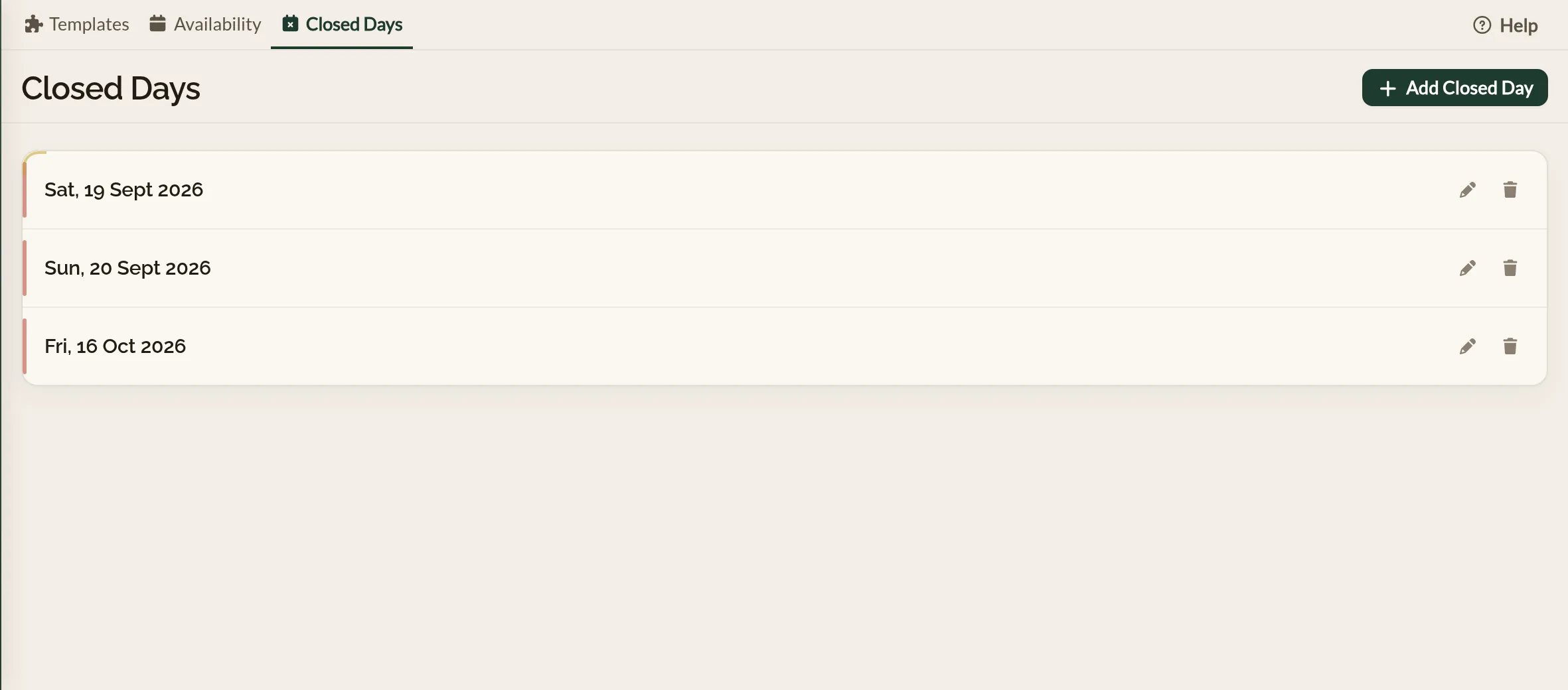
- Tap Availability, then the Closed Days tab.
- Tap Create.
- Pick the date and save.
The closure covers the whole day, from midnight to midnight. There is no half-day option — for a partial closure (an early finish on Christmas Eve, for example), see "Closing for part of a day" below.
Closing a stretch of days
Closed Days are added one date at a time — there is no date-range picker. For a longer break (a two-week summer holiday, a refurbishment), add each date individually.
What guests see on a closed day
Guests simply do not see any availability for a closed day and thus are unable to book.
Editing or removing a closure
Find the date in the Closed Days list and use the edit or delete actions inline. Removing a closure re-opens the day to your usual availability template (if there is one for that weekday).
Closing for part of a day
For "closing early" or "opening late" — a Christmas Eve service that wraps up at 18:00, for example — there are two ways:
- Edit the availability template for that weekday to use the earlier end time. Simple if the change is permanent.
- Add a one-off availability window for the specific date on the Availability tab. Set the start and end times to the shortened service. This works alongside your weekly template — the one-off window takes precedence on that date. See Services and meal periods for how one-off windows work.
One-off changes that are not closures
Closing Days is for days you are not taking bookings. For dates when you may be closed to the public such as a private hire, a public holiday, etc. You can continue using Make a Rezzy to manage the bookings for that day, but customers will not be able to book through your widget or listing.
Where to go next
- Setting your opening hours — the schedule that runs in the background of every non-closed day.
- Services and meal periods — the place to set up one-off windows that are not closures.
- Cancellations and no-shows — for the existing bookings sitting on a date you have just closed.