Once you are set up, the next thing is to give the rest of your team access. Each person you add gets their own sign-in and a role that controls what they can do.
The three roles
Every member of your team has one of three roles:
- Owner — full access. Owners can change anything in the business and manage every other member, including other Owners.
- Admin — the same day-to-day access as an Owner: bookings, availability, the floor plan, menus, guests, and so on. The only thing an Admin cannot do is manage Owners — they can add, change, and remove Admins and Staff, but not Owners.
- Staff — front-of-house access. They can see the diary, take, change and cancel bookings, look up guests, and keep guest profiles up to date — adding a guest, editing their details, adding notes and applying tags — but they cannot change how the business is set up. Useful for hosts and front-of-house who need to see what is coming in, take bookings and walk-ins, seat parties and record what they learn at the door.
You can change someone's role at any time without removing and re-adding them.
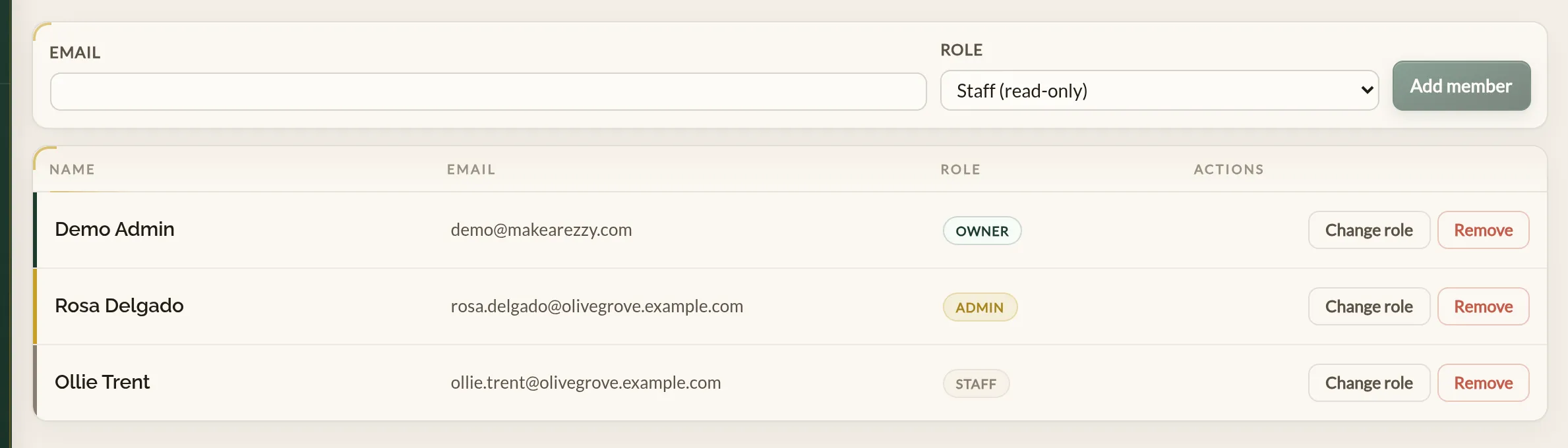
Adding a member
- Sign in at manage.makearezzy.com.
- From the left-hand menu, open Users.
- At the top of the page, type the person's email address in the Add a member form.
- Pick a role — Owner, Admin, or Staff (read-only).
- Click Add member.

They will appear in the list straight away. The next time they sign in, your business will show up in their list of restaurants.
Changing someone's role
- On the Users page, find the member.
- Click Change role on their row.
- Pick the new role and click Save.
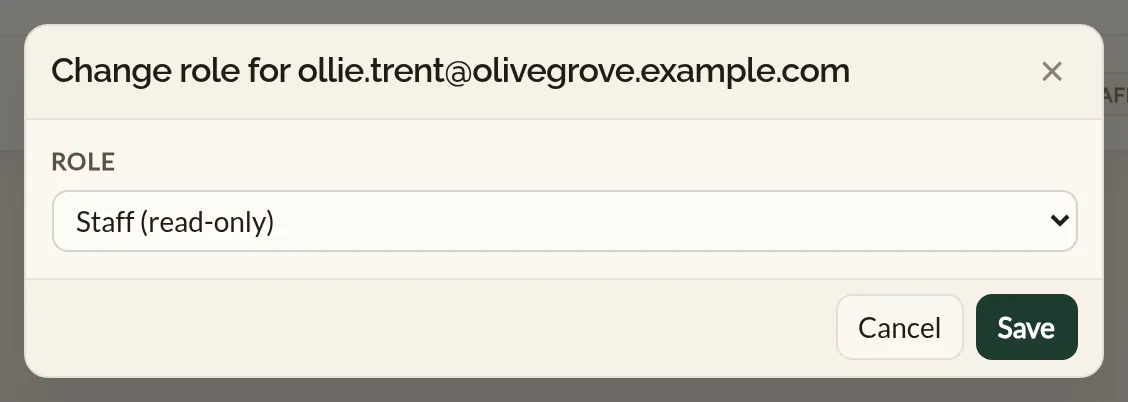
Two rules apply to changing roles:
- You can only manage members at or below your own role. An Admin cannot change an Owner's role, for example.
- You cannot grant a role above your own. Only Owners can make other Owners.
Removing a member
- Find the member on the Users page.
- Click Remove on their row.
- Confirm the removal.
Removing a member only unlinks them from this business. Their Make a Rezzy account itself is untouched — if they work at another restaurant that uses Make a Rezzy, they will still have access there.
You cannot remove yourself from your own business. If you need to hand things over, add another Owner first and ask them to remove you.
Roles at a glance
| What they can do | Owner | Admin | Staff |
|---|---|---|---|
| See the diary and guest details | Yes | Yes | Yes |
| Add guests, edit their details, add notes and tags | Yes | Yes | Yes |
| Delete guests and merge duplicates | Yes | Yes | No |
| Take, edit, and cancel bookings | Yes | Yes | Yes |
| Read reviews | Yes | Yes | Yes |
| Reply to reviews | Yes | Yes | No |
| Change opening hours and business details | Yes | Yes | No |
| Edit the floor plan and menus | Yes | Yes | No |
| Add and manage Admins and Staff | Yes | Yes | No |
| Add and manage other Owners | Yes | No | No |
In the mobile app, Staff see Today, Diary, Guests, the Inbox and, under More, the pre-shift brief, events, reviews, the services list with its class rosters and the team's hours for the day. They do not see availability or the setup screens, and the app hides the actions they cannot use — replying to a review, and the Edit on web links on services and the team. Bookings work the same for them as for everyone else: adding a booking or a walk-in, seating a party, marking a no-show, cancelling or editing, and moving bookings on the timeline. They can open a booking or a review from the Inbox, and marking events read is their own. On the Guests tab they have the same tools as everyone else: adding a guest, editing details, adding notes, applying tags and starting a new booking.
A Staff member whose sign-in is linked to a team member record also gets My day under More — their own appointments and sessions with their hours. See Adding your team for linking.
Where to go next
With your team in, that is the Getting Started section done. Carry on to How bookings work for the next layer of detail, or jump straight to the section your team needs most.
See also: Every feature in Make a Rezzy