Tags are short, reusable labels you can stick on a guest or on an individual visit — a VIP regular, a birthday booking, a no-show risk. You set up the list once for your business, then apply the labels wherever you need them.
Two kinds of tag
The same list of tags is used in two ways:
- Guest tags describe the person, and follow them from one visit to the next — "VIP", "regular", "press". A guest tag shows with a small person icon so you can tell it apart at a glance.
- Visit tags describe a single booking, and stay with that booking only — "birthday", "large party", "set menu". A visit tag shows on its own, without the person icon.
Both draw from the same shared list, so once you have created a tag you can use it either way.
Setting up your tags
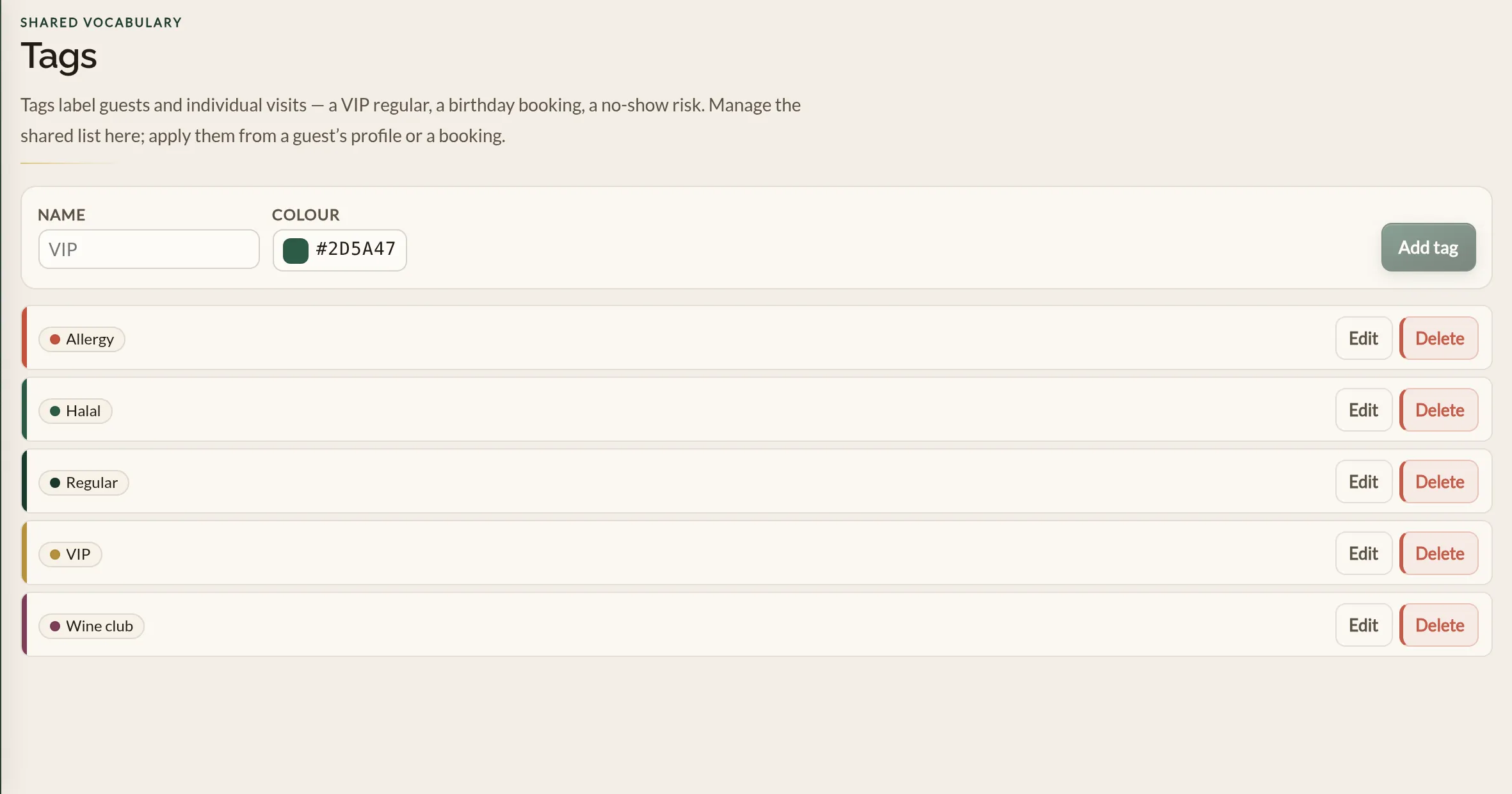
Go to Tags in the sidebar, under Management. This is where you manage the shared list for your whole business.
- Type a Name for the tag — keep it short, like "VIP" or "Birthday".
- Pick a Colour so the tag is easy to spot. Tags default to green if you do not choose one.
- Click Add tag. It is now available to apply to any guest or visit.
Applying a tag
You do not have to visit the Tags page to apply a label — you add and remove tags from wherever you are working:
- On a guest's profile, to tag the person.
- On a booking, in its Visit Tags, to tag that one visit.
In both places, click Add tag and start typing. Pick an existing tag from the list, or — if it does not exist yet — choose Create "…" to add it on the spot. To take a tag off, click the small cross on it. A tag you create this way has no colour until you set one on the Tags page.
In the mobile app, open the guest from the Guests tab and tap Edit tags beneath their name. Tap a tag to apply it and tap it again to take it off. Every member of your team can do this, Staff included.
Where tags show up
Once applied, tags appear wherever you need to read a guest or a booking quickly — on the guest list and a guest's visit history, on the booking details, on the floor plan when you open a booking, and on the pre-shift report. This keeps the labels in front of your team at the moments they matter.
Editing or deleting a tag
On the Tags page, each tag has Edit and Delete. Editing lets you rename it or change its colour, and the change applies everywhere the tag is used.
Where to go next
- Notes, dietary, and seating — the free-text fields, which are separate from tags.
- Guest profiles — where guest tags live alongside the rest of a guest's history.
- Finding and exporting guests — filter your guests by tag.
See also: The restaurant guest CRM