A tracking link is a short link you share in one place — your Instagram bio, your Google Business Profile, a QR code on the menu — so you can see how many people opened it and how many went on to book. This article covers creating a link, downloading its QR code, reading the figures and archiving a link you no longer use.
Why use a tracking link
When a guest taps your booking link inside the Instagram app, or scans a QR code on a flyer, nothing tells Make a Rezzy where they came from, so the booking is filed as Direct. A tracking link carries that information with it. Bookings made through the link are filed under the right channel on the Marketing tab, and counted against the link itself.
Use a separate link for each place you share it. One link in your Instagram bio and another on the menu tells you which of the two is bringing in bookings.
Creating a tracking link
- Sign in at manage.makearezzy.com.
- Open Tracking Links under Marketing & Website in the left-hand menu.
- Click Create link.
- Choose where you will share it: Instagram bio, Facebook page, Google Business Profile, Email signature, Menu QR, Table QR or Flyer. This decides which channel the link's bookings are filed under, so you do not have to.
- Change the name if you like. Only your team sees it.
- Choose where to send guests: your Explore landing page, your booking form, or your own website.
- Check the link itself. It is filled in for you and can use lower-case letters, numbers and hyphens. It cannot be changed once the link is created, and no two links can be the same.
- Click Create link.
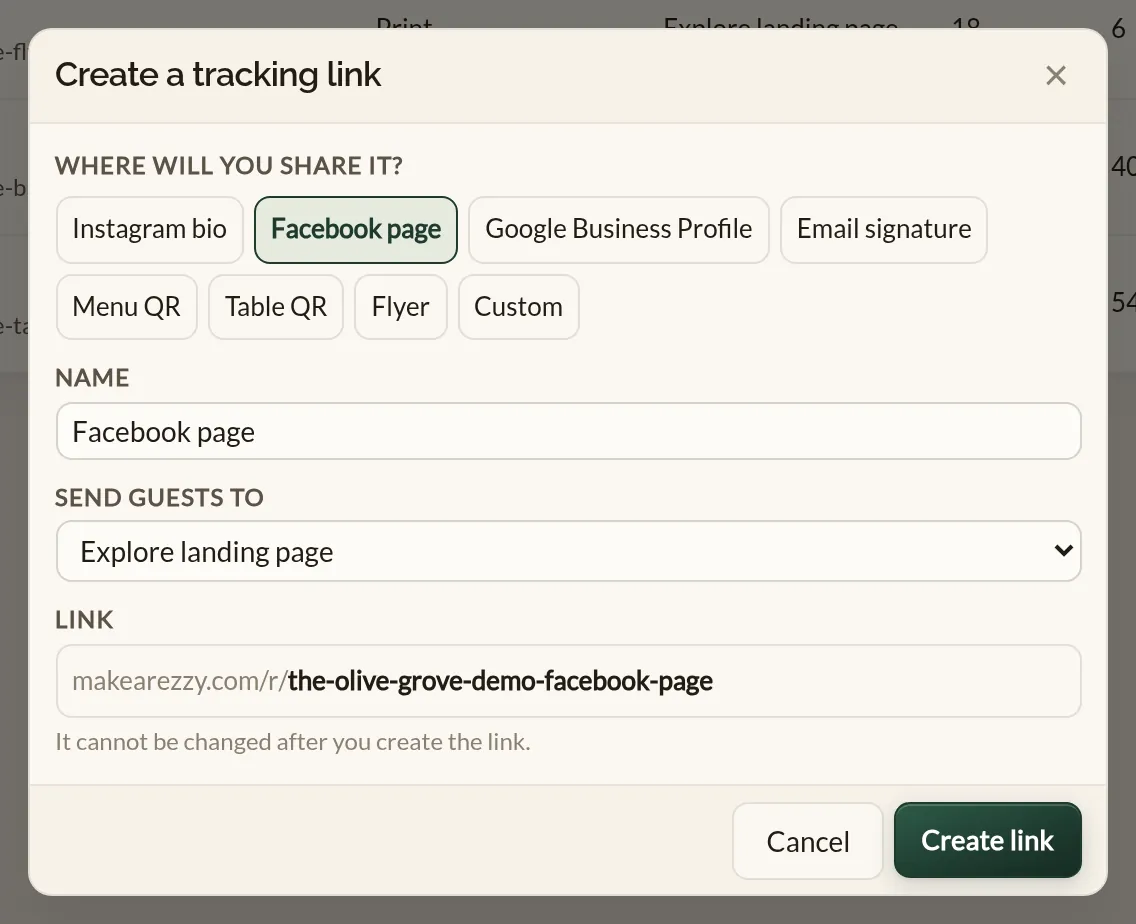
If none of the places fits, choose Custom, give the link a name and pick the channel its bookings should be filed under.
Which channel each link is filed under
- Instagram bio and Facebook page — Organic Social.
- Google Business Profile — Organic Search.
- Email signature — Email.
- Menu QR, Table QR and Flyer — Print.
Sharing the link and its QR code
Each link in the list has two buttons. Copy link copies the short link, ready to paste into your bio, profile or email signature. QR code downloads a picture of a QR code that opens the link, ready to send to your printer or drop into a menu design.
Reading the figures
Pick a From and To date above the list. For each link you see:
- Clicks — how many times the link was opened in those dates. Apps that show a preview of a link open it too, so clicks can read a little higher than the number of people.
- Bookings — bookings made through the link in those dates, counted by the day they were made.
- Covers — the total guests across those bookings.
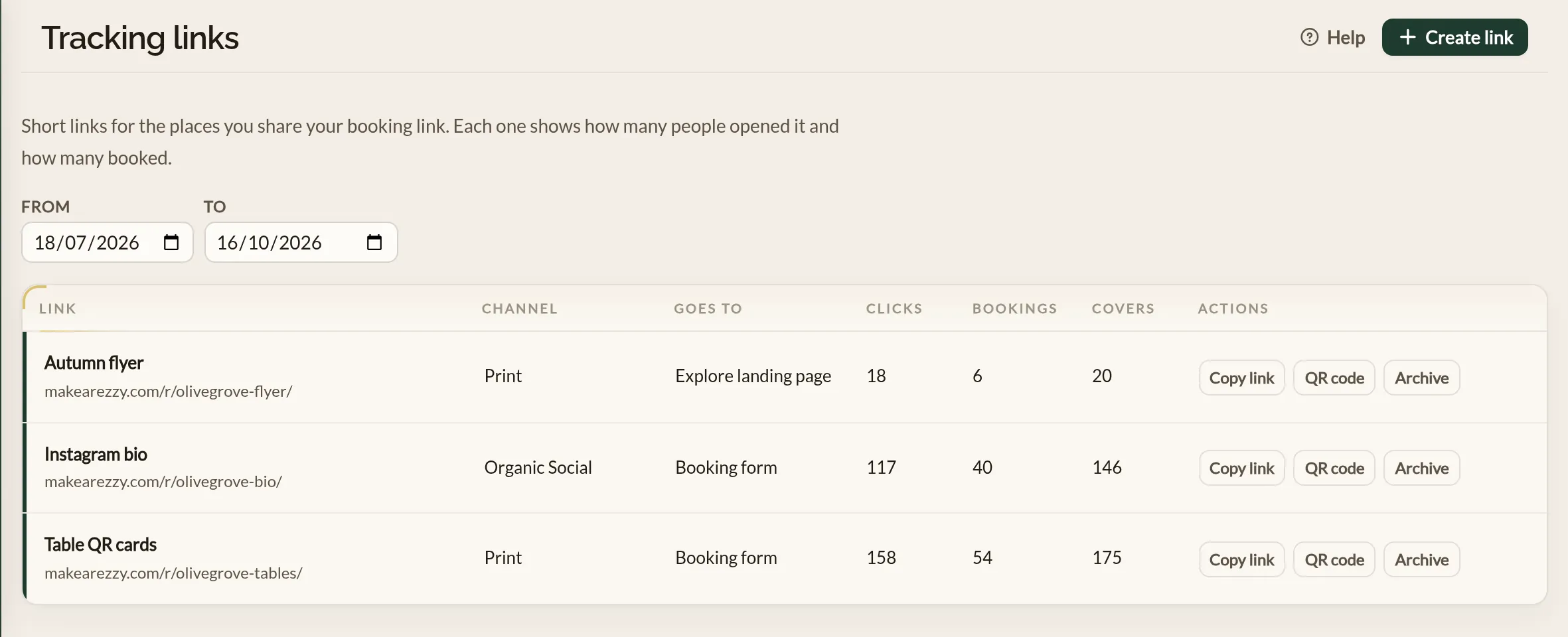
A booking is counted against a link when the guest books on the page the link took them to. Bookings made before you created the link are not counted against it.
Archiving a link
When you stop using a link, click Archive. The link moves to the bottom of the list and can no longer be copied or have its QR code downloaded. It keeps working, so a QR code already in print still takes guests where it always did, and its bookings are still counted. Archiving cannot be undone.
Who can do what
Owners and admins can create and archive tracking links.
Where to go next
- Reading the reports — how link bookings appear on the Marketing tab.
- Ads — paid campaigns are tracked for you without a tracking link.