The Schedule section of the experience form decides three things: which days the experience runs, which start times guests can pick, and how many people can book each one. Classes, appointments and open sessions all have it. A dining event has a shorter When section, and opens this full editor when you click Different hours on different days.
The four types
You pick the type when you add the experience, and it cannot be changed afterwards. It decides what a time window means.
- Class — fixed sessions with a number of spots. Each time window is one session starting at the window's start time. A pasta-making class at 10:00 with 12 spots is a class.
- Appointment — bookable start times on an interval. Capacity is how many appointments can run at the same time. A cake consultation bookable every 30 minutes with two people taking them is an appointment.
- Open session — entry times on an interval within a window. Capacity is how many guests can be in at once. A kitchen garden tour with entries on the hour and room for 15 people is an open session.
- Dining event — in the full editor, a dining event that does not take up tables has the same window fields as an open session, with its capacity as the most guests at one time. One that takes up tables has only the start interval: your tables are its limit.
Schedule periods
An experience's schedule is a timeline of one or more periods. Each period covers a stretch of dates — a start date and an optional end date — and carries its own frequency and time windows. Most experiences need just one open-ended period. Periods must not overlap, and a gap between periods simply means the experience does not run on those dates.
Within a period, pick how often the experience runs:
- Weekly — runs on the days of the week set on each time window. The usual choice for a recurring timetable.
- Daily — runs every day of the period. Set the start and end dates to the same day for a one-off.
- Multiple dates — runs on the specific dates you add to a list.
Changing your schedule for a while
When the timetable changes temporarily — reduced summer hours, a festival fortnight — add a period for just that stretch rather than editing your normal pattern. End the normal period the day before the change, add the temporary period with its own windows, and add a period from the day after with the normal windows again. Everything switches over and back on the right dates by itself.
Each period's windows carry their own session team members too, so a different instructor can cover a class for the summer without touching the rest of the year.
Time windows
A time window is a band of time the experience runs within on each active day — with a Start time, an End time, and a capacity. You can add as many windows as you need, and on a weekly schedule each window also has a Day, so a Tuesday timetable can differ from a Saturday one.
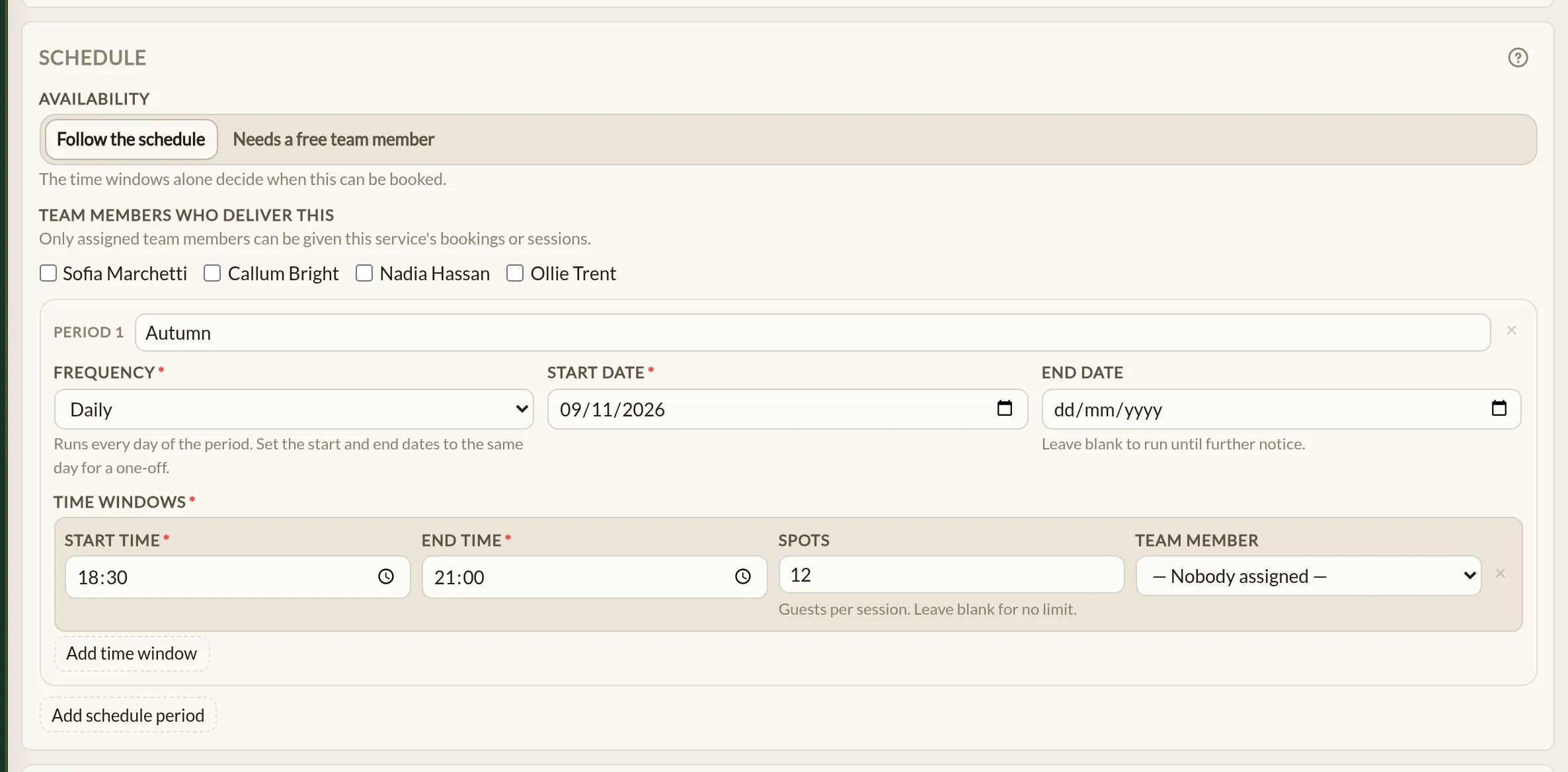
What the window means depends on the type:
- Class — each window is one session, starting at the window's start time. Spots is the class size. Add one window per session — a 18:00 and a 19:30 class on the same evening are two windows.
- Appointment — guests can start every so many minutes through the window, set by Start every (minutes). At the same time is how many bookings can overlap — usually your number of rooms, chairs or stations. Who is free to take them is a separate check; see Availability and your team.
- Open session — guests enter on a cadence set by Entry every (minutes), and Capacity is how many guests the space holds at once.
Start and entry times must be at least 15 minutes apart.
The end time is the latest a booking may finish, not the last start. A 60-minute option in a 09:00–17:00 window has its last start at 16:00 — Make a Rezzy works this out for you, and only offers start times each option genuinely fits.
How capacity works
What capacity counts depends on the type. For a class or an open session it counts guests: a booking for three people takes three spots. For an appointment it counts bookings: each booking is one party with one team member in one room, chair or station. Make a Rezzy checks capacity across everything that overlaps, so:
- A class stops taking bookings when its spots are gone — and guests see the remaining spots against each session time as they book.
- An appointment slot stops being offered when every place is taken for any part of it. Two 60-minute consultations at 09:00 and 09:30 with room for two at the same time mean nothing more can start at 09:00 or 09:30, and the next bookable start is 10:00, when the first one finishes — the overlap is handled for you. A consultation for a couple still takes one place.
- An experience that takes up tables also needs a free table that fits the party, as a table booking does.
- Longer options need a longer clear run, so a date can have times available for a 30-minute option that a 90-minute option cannot fit into.
Leave the capacity blank for no limit: the window then takes as many bookings as guests make.
Capacity is a limit on what guests can book for themselves. When your team books a guest in, a full time is marked as full but can still be chosen — handy for squeezing a regular into a class. See Taking a booking by phone.
In the app, each class session shows how many of its spots are taken on the experience's page under More → Experiences, and on the Diary's timeline. A full session reads Full in coral.
Availability and your team
Each class, appointment and open session has an Availability setting with two choices:
- Follow the schedule — the time windows alone decide when the experience can be booked. This is the default behaviour.
- Needs a free team member — a time is only offered while at least one team member assigned to the experience is free to take it. Someone already serving another booking, committed to a class session, on booked time off or outside their working hours is not free — and a team member with Bookable online switched off never counts. See Adding your team for working hours and time off.
For classes, each time window can carry a Team member — the person who runs those sessions. Assigning someone commits them for every session, whether or not anyone has booked yet, so they will not be offered for appointments at the same time. With Needs a free team member switched on, a class session without an assigned team member is not bookable.
The team member is checked for clashes when you save the schedule, for every session up to your Days visible to customers limit. Sessions further ahead are checked when their times are added: each night as dates come inside the limit, or when your team opens a later date. If by then the team member has an appointment, time off or another class at that time, the session is still added and guests can book it, and your owners and admins get an email. It says what the session clashes with and, for a booking, when that booking came in. Sort the clash out by moving the booking or by giving the window to someone else.
Appointments can also let guests pick who serves them — switch on Customers choose their team member on the experience form. Choosing a person narrows the offered times to that person's free times; choosing "No preference" keeps the full availability. Bookings made with no preference — and all online bookings when the setting is off — are assigned to an available team member automatically at the moment of booking, or left for you to allocate when nobody is free. Guests only ever see team members assigned to the experience and marked bookable online.
The app shows the team's side of this: More → Team lists each member's working hours and time off for today, and a member's own day lists the appointments they are serving and the sessions they run. Working hours, time off and who delivers which experience are changed on the web.
Clean-up time
Appointments can carry a Clean-up time (minutes) — turnover time after each booking during which the space is not bookable. A 60-minute consultation with 15 minutes of clean-up occupies the space for 75 minutes, but the guest's booking still shows as 60.
How far ahead guests can book
Bookable times are offered as far ahead as the Days visible to customers setting on your business details, and no earlier than the experience's Notice hours. Closed dates set under Availability are skipped.
If an experience takes up tables, guests are only offered its times while your restaurant is open. A time outside your opening hours, or in hours you have closed under Availability, is not shown to guests. Your team can still book it from the management screens.
Your team can book further ahead than that from the management screens: pick any date the experience runs on and its times are made ready.
Where to go next
- Creating an experience — the rest of the experience form.
- Closing dates and exceptions — closed dates apply to experiences too.
See also: Class and appointment booking